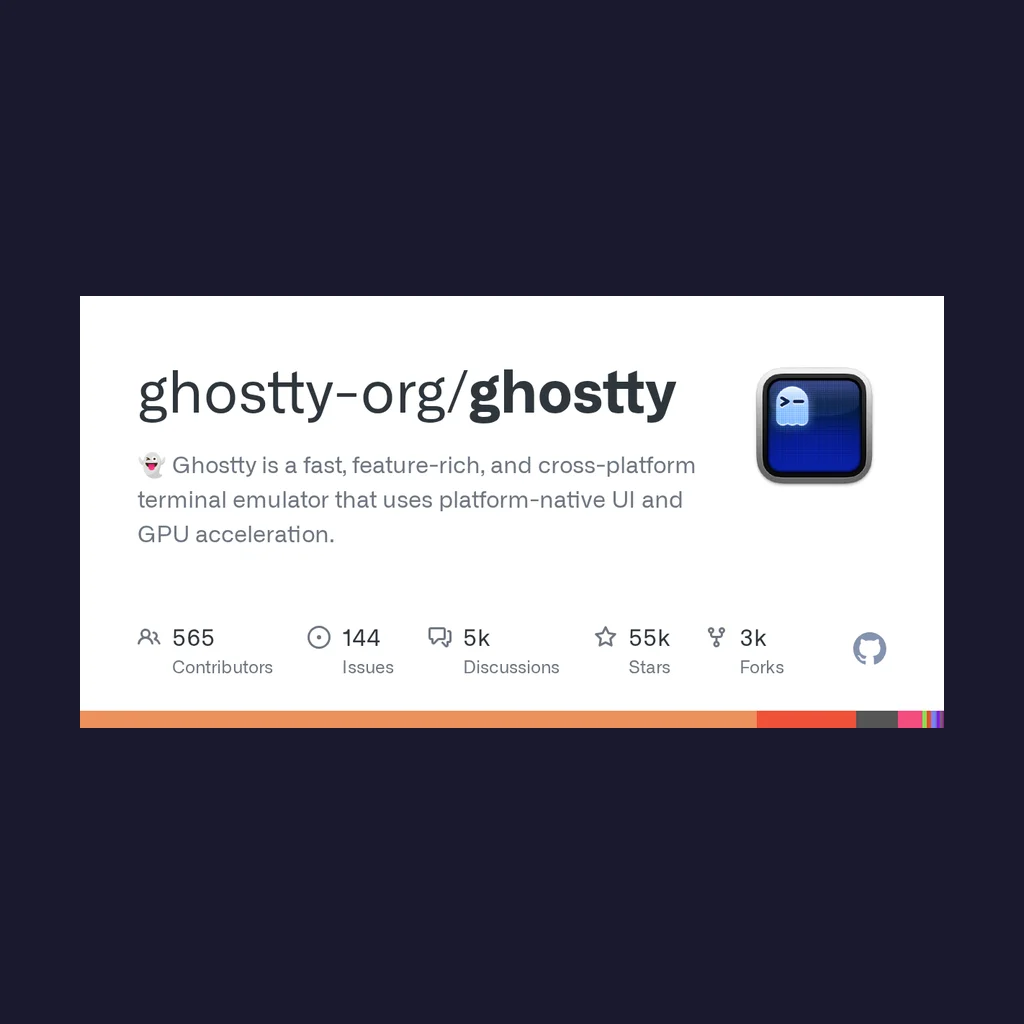
If you're still using your system's default terminal emulator, Ghostty is absolutely worth trying. Developed by HashiCorp founder Mitchell Hashimoto, this terminal emulator has become one of the most popular emerging tools in the developer community by 2026.
Why Choose Ghostty?
In the terminal emulator space, developers usually have to compromise between speed, features, and a native experience. Ghostty breaks that mold — it excels in all three areas.
Core Advantages
🚀 Blazing Performance
Ghostty uses a multi-threaded architecture with dedicated I/O threads, keeping latency low even under heavy loads. For rendering, it leverages OpenGL (Linux) and Metal (macOS) for GPU acceleration, maintaining smooth rendering at around 60fps.
🎨 Native UI Experience
Unlike other cross-platform terminals, Ghostty uses platform-native UI components. On macOS, it looks and feels like a native app; on Linux, it integrates seamlessly into GTK/Qt environments.
⚡ Modern Features
- Ligature font support
- Native Nerd Fonts support
- Multi-window, tabs, and split panes
- Tab overview and search
- Configurable keybindings and trigger sequences
Installing Ghostty
macOS Installation
Homebrew is the easiest way to install:
# Add Ghostty's tap
brew install --cask ghostty
Or download the .dmg file directly and drag it into your Applications folder.
Linux Installation
Ubuntu/Debian:
# Download the latest release
wget https://github.com/ghostty-org/ghostty/releases/latest/download/ghostty-amd64.deb
sudo dpkg -i ghostty-amd64.deb
Fedora/RHEL:
# Enable the COPR repository
sudo dnf copr enable zyantific/ghostty
sudo dnf install ghostty
Arch Linux:
# Install from AUR
yay -S ghostty
# or
paru -S ghostty
Flatpak (universal):
flatpak install flathub org.ghostty.Ghostty
Configuration Guide
Ghostty's config file lives at ~/.config/ghostty/config and uses a simple key-value format.
Basic Configuration Example
# Font settings
font-family = "JetBrainsMono Nerd Font"
font-size = 14

# Theme
theme = "Catppuccin Mocha"

# Hide cursor while typing
mouse-hide-while-typing = true

# Window settings
initial-window-width = 1200
initial-window-height = 800

# Tab overview shortcut
keybind = ctrl+a>o=toggle_tab_overview

# Split pane shortcuts
keybind = ctrl+a>h=split:left
keybind = ctrl+a>v=split:down
Viewing Configuration Documentation
Ghostty lets you browse the config docs locally:
ghostty +show-config --default --docs | less
Core Features Explained
1. Split Panes
Ghostty supports horizontal and vertical splits, similar to Terminator or Kitty:
# Default shortcuts
Ctrl+Shift+H  # Vertical split (left/right)
Ctrl+Shift+V  # Horizontal split (top/bottom)
Ctrl+Shift+X  # Close current split
Ctrl+Shift+Arrow  # Navigate between splits
2. Tab Overview
When you have multiple tabs open, use the overview feature to quickly find what you need:
# Open overview
Ctrl+Shift+O

# Or add a trigger sequence in config
keybind = ctrl+a>o=toggle_tab_overview
The overview screen displays thumbnails of all your tabs and supports search.
3. Trigger Sequence Keybindings
Ghostty supports Vim-like trigger sequences, allowing chained key operations:
# Example config
keybind = ctrl+a>n=new_tab
keybind = ctrl+a>c=close_tab
keybind = ctrl+a>l=split:right
4. Automatic Tab Naming
Ghostty automatically names tabs based on the running command, making them easy to identify:
- Running
vim config.py→ tab shows "vim" - Running
top→ tab shows "top" - Running
ssh server→ tab shows "ssh"
Performance Comparison
Based on community benchmarks, Ghostty performs exceptionally well in the following scenarios:
| Scenario | Ghostty | Kitty | Alacritty | iTerm2 |
|---|---|---|---|---|
| Large file output (cat) | ⭐⭐⭐⭐⭐ | ⭐⭐⭐⭐ | ⭐⭐⭐⭐⭐ | ⭐⭐⭐ |
| Scroll smoothness | ⭐⭐⭐⭐⭐ | ⭐⭐⭐⭐ | ⭐⭐⭐⭐⭐ | ⭐⭐⭐ |
| Startup speed | ⭐⭐⭐⭐ | ⭐⭐⭐⭐⭐ | ⭐⭐⭐⭐⭐ | ⭐⭐ |
| Feature richness | ⭐⭐⭐⭐ | ⭐⭐⭐⭐⭐ | ⭐⭐⭐ | ⭐⭐⭐⭐⭐ |
Ghostty vs. Kitty
Many users compare Ghostty with Kitty. While the two share similarities, the key differences are:
Ghostty advantages: - Native UI with better system integration - More active maintenance (version 1.3+ in 2026) - Simpler configuration - Better macOS support
Kitty advantages: - More mature feature set - Richer plugin ecosystem - Fully keyboard-driven workflow
Real-World Use Cases
Scenario 1: Managing Multiple Servers
Use split panes to monitor several servers simultaneously:
# Left pane: production server
ssh prod-server

# Right pane: development server
ssh dev-server

# Bottom pane: local logs
tail -f logs/app.log
Scenario 2: Development Workflow
# Tab 1: Code editing
vim src/main.go

# Tab 2: Running tests
go test ./...

# Tab 3: Git operations
git status && git commit -m "fix: bug"
Scenario 3: System Monitoring
# Split 1: CPU/Memory monitoring
bottom

# Split 2: Network monitoring
iftop

# Split 3: Process management
htop
FAQ
Q: Is Windows supported?
Currently, Ghostty only supports macOS and Linux. A Windows version is in development but hasn't been released yet.
Q: Does it work with all shells?
Yes. Ghostty is a standard terminal emulator and is compatible with all major shells — bash, zsh, fish, and more.
Q: How do I enable ligature fonts?
Ghostty supports ligatures out of the box. Just install a ligature-capable font (like JetBrains Mono or Fira Code) and set it in your config:
font-family = "JetBrainsMono Nerd Font"
Summary
Ghostty represents the future direction of terminal emulators — delivering high performance while providing a modern user experience. Whether you are:
- A developer who needs multi-tab management
- A sysadmin chasing peak performance
- A power user who likes a polished terminal
Ghostty is worth your time. Its default config is already excellent and works right out of the box, while still offering rich customization options for advanced users.
Project links:
If you're looking for a terminal emulator that handles daily development tasks without breaking a sweat and doesn't let you down when it matters, Ghostty is the way to go.