Exploring GIMP: A Free and Powerful Image Processing Tool
title: Exploring GIMP: A Free and Powerful Image Processing Tool date: 2024-12-21 slug: gimp categories: - Efficiency Tools tags: - GIMP - Image Processing - Open Source Software - Graphic Design description: Complete guide to GIMP free image processing software. From installation to advanced features, including photo editing, graphic design, digital painting tutorials, and the best free alternative to Photoshop. cover: https://res.makeronsite.com/dashen-tech.com/gimp-cover.webp
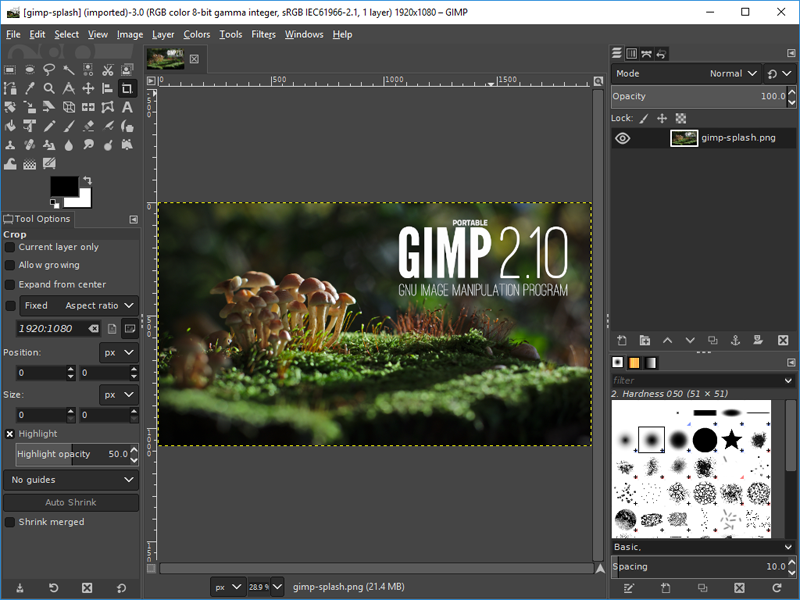
GIMP (GNU Image Manipulation Program) is a free and open-source image processing software with powerful features that can meet various needs from simple image modifications to complex artistic creations. Whether you're a photography enthusiast, designer, or just need to process some images, GIMP is an excellent choice.
1. Brief Introduction
-
Development History: GIMP development began in 1995, initiated by University of California Berkeley students Peter Mattis and Spencer Kimball. The initial goal was to create an intuitive graphical interface for various image editing operations. In 1997, GIMP officially became part of the GNU project. After years of development, GIMP has become one of the most popular open-source image editors.
-
Development Team: GIMP is maintained and developed by an active development team (GIMP Team). In addition, many community contributors participate, jointly promoting GIMP's progress.
- Main Features: GIMP is mainly used for photo editing, image compositing, graphic design, digital painting, and batch image processing. It provides a wide range of tools and features to meet various image processing needs.
- GIMP supports multiple operating systems, including GNU/Linux, macOS, and Windows.
- GIMP follows the GNU General Public License (GPL) open-source protocol, allowing users to download, use, and modify the software for free.
- GIMP's latest version is 2.10.38 (as of November 2024), with regular updates providing feature enhancements and bug fixes.
2. Features and Interface
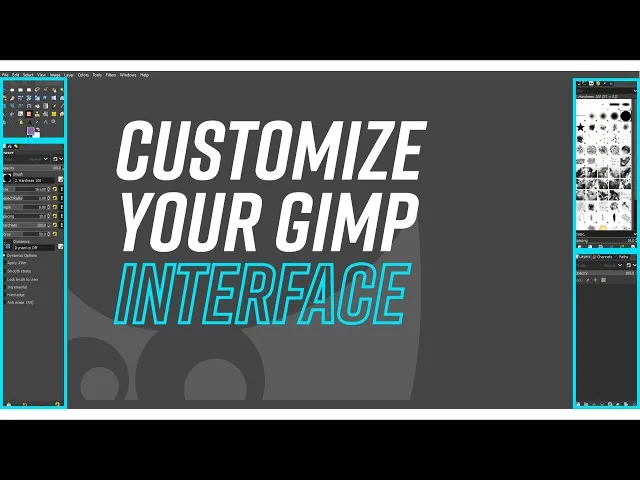 * Customizable Interface: GIMP allows users to customize views and operation methods, including changing colors, control spacing, icon sizes, and creating custom toolsets. Users can modularize the interface into dockable panels and organize them through tabs.
* Different windows (such as toolbox, layers window, etc.) can be docked as tabs or kept as independent windows by dragging.
* Main Interface Components:
* Main Toolbar: Located on the left side of the interface, containing various tools such as selection tools, brush tools, fill tools, etc.
* Layers Window: Usually located on the right side, displaying all layers of the currently opened image. Layers are an important part of complex image editing in GIMP. You can add, delete, hide, or edit layers here.
* Properties Bar: Located at the top of the interface, displaying settings related to the currently selected tool. You can adjust tool parameters here, such as brush size, opacity, etc.
* Main Features:
* Photo Enhancement: GIMP provides various tools for fixing perspective distortion, eliminating lens barrel distortion and vignetting, adjusting color channels, etc.
* Digital Retouching: GIMP is suitable for advanced photo retouching techniques, such as using the clone tool to remove unwanted details, using the healing tool for detail repair.
* Painting Tools: GIMP provides rich painting tools for creating illustrations and digital paintings.
* Hardware Support: GIMP supports various input devices, such as pressure and tilt-sensitive graphics tablets, USB or MIDI controllers.
* File Format Support: GIMP supports many common image formats, including JPEG, GIF, PNG, and TIFF, as well as special formats like Windows icon files. It can also extend file format support through plugins.
* Advanced Color Management: GIMP supports ICC profiles and high-precision color calibration to ensure consistency between digital output and print output.
* Batch Processing: GIMP supports batch image processing through built-in scripts or plugins, such as format conversion, size adjustment, etc.
* Support for transparent virtual file system, allowing loading and saving files through protocols like FTP, HTTP, SMB, and SFTP/SSH.
* Customizable Interface: GIMP allows users to customize views and operation methods, including changing colors, control spacing, icon sizes, and creating custom toolsets. Users can modularize the interface into dockable panels and organize them through tabs.
* Different windows (such as toolbox, layers window, etc.) can be docked as tabs or kept as independent windows by dragging.
* Main Interface Components:
* Main Toolbar: Located on the left side of the interface, containing various tools such as selection tools, brush tools, fill tools, etc.
* Layers Window: Usually located on the right side, displaying all layers of the currently opened image. Layers are an important part of complex image editing in GIMP. You can add, delete, hide, or edit layers here.
* Properties Bar: Located at the top of the interface, displaying settings related to the currently selected tool. You can adjust tool parameters here, such as brush size, opacity, etc.
* Main Features:
* Photo Enhancement: GIMP provides various tools for fixing perspective distortion, eliminating lens barrel distortion and vignetting, adjusting color channels, etc.
* Digital Retouching: GIMP is suitable for advanced photo retouching techniques, such as using the clone tool to remove unwanted details, using the healing tool for detail repair.
* Painting Tools: GIMP provides rich painting tools for creating illustrations and digital paintings.
* Hardware Support: GIMP supports various input devices, such as pressure and tilt-sensitive graphics tablets, USB or MIDI controllers.
* File Format Support: GIMP supports many common image formats, including JPEG, GIF, PNG, and TIFF, as well as special formats like Windows icon files. It can also extend file format support through plugins.
* Advanced Color Management: GIMP supports ICC profiles and high-precision color calibration to ensure consistency between digital output and print output.
* Batch Processing: GIMP supports batch image processing through built-in scripts or plugins, such as format conversion, size adjustment, etc.
* Support for transparent virtual file system, allowing loading and saving files through protocols like FTP, HTTP, SMB, and SFTP/SSH.
3. Image Processing Guide
GIMP provides various image processing functions. Here are some basic operations:
- Adjust Image Size:
- Select "Image" > "Scale Image".
- In the dialog box that appears, enter the new width and height. If you need to maintain the image's aspect ratio, ensure the chain icon next to width and height is locked.
- You can choose the interpolation method, where "Sinc (Lanczos3)" is usually used to preserve the best image quality.
- After scaling, use "File" > "Export" to save the modified image.
- Adjust JPEG File Size:
- Select "File" > "Export".
- In the dialog box that appears, adjust the JPEG compression quality. Lower quality settings will produce smaller file sizes but may result in decreased image quality, and vice versa.
- You can check the "Show preview in image window" option to view image effects and file size changes in real-time when adjusting quality.
- Crop Image:
- Select the "Crop Tool" (icon is a blade).
- Click and drag the mouse on the image to draw a crop box.
- You can adjust the crop area by dragging the edges or corners of the crop box.
- After confirming the crop area, double-click inside the crop box or press "Enter" to complete the cropping.
- You can also first select an area using the "Rectangle Select Tool", then crop via "Image" > "Crop to Selection".
- Rotate and Flip Image:
- Select the "Image" > "Transform" menu.
- "Flip" operation can choose horizontal or vertical flipping of the image.
- "Rotate" operation can rotate the image 90 degrees clockwise or counterclockwise, or 180 degrees.
- If you need rotation at any angle, you need to use the layer transform function, not just image transformation.
- Other Image Processing
- GIMP provides various tools for adjusting colors to improve the color performance of images. For example, select "Colors" > "Brightness-Contrast" to adjust the brightness and contrast of the image.
- GIMP also provides rich filter effects to enhance the expressiveness of images. You can browse available filter effects in the "Filters" menu and set them as needed.
4. Usage Tips
- Customize Interface Layout: Use the "Window" menu to adjust workspace layout and save commonly used tool arrangements.
- Apply Shortcuts: Familiarize yourself with common shortcuts (such as
Ctrl+Zfor undo,Ctrl+Shift+Efor export) to significantly improve work efficiency. - Layer Management: Make good use of layer groups and mask functions to organize complex designs. Layers allow users to edit different elements of the image separately, facilitating complex modifications, and you can adjust transparency and merge them.
- Automate Batch Tasks: Use Python to write scripts to achieve batch export functions and improve efficiency.
- Make Good Use of Plugins and Scripts: GIMP supports plugins and scripts, allowing you to add functions according to personal needs, such as color management, filter effects, etc.
5. Common Questions
- What file formats can GIMP open? GIMP supports multiple file formats, including JPEG, PNG, GIF, TIFF, and PSD, etc.
- How to recover accidentally deleted layers? You can select "Undo" in the "Layer" menu to recover.
- How to improve GIMP's running speed? Try closing unnecessary layers and windows; optimizing computer performance can also improve GIMP's running speed.
- Does GIMP support plugins? Yes, GIMP supports various plugins, and users can download and install them according to their needs.
- What's the difference between GIMP and Photoshop? GIMP is open-source and free, while Photoshop is paid software. In terms of functionality, GIMP is similar to Photoshop, but may differ in some professional features.
- How to customize GIMP's interface? You can customize the interface through "Edit" > "Preferences", including toolbars, window layouts, etc.
- Why is my image displaying blurry? It may be due to improper resolution settings; try adjusting the resolution in "Scale Image".
- How to select specific color areas? Use the "Magic Wand" tool in the "Selection Tools" to quickly select areas of similar colors.
- How to perform batch image processing? GIMP supports batch processing using scripts; users can customize scripts to achieve automated operations.
Summary
GIMP is a powerful and free image processing software that can be used by professionals and amateurs alike to complete various image processing tasks. I hope this blog post helps you better understand and use GIMP.