title: Essential Network Admin Tool Ventoy: One USB Drive for Multiple ISO System Boot Tools date: 2024-12-31 slug: ventoy authors: [kevinpeng] categories: - System Tools tags: - Ventoy - Boot Drive - ISO description: Ventoy multi-system boot drive creation tool tutorial. One USB drive stores multiple ISO images, supports Windows/Linux/PE systems, essential tool for network admins and maintenance personnel. cover: https://res.makeronsite.com/dashen-tech.com/ventoy-cover.webp
Essential Network Admin Tool Ventoy: One USB Drive for Multiple ISO System Boot Tools
1. Brief Introduction
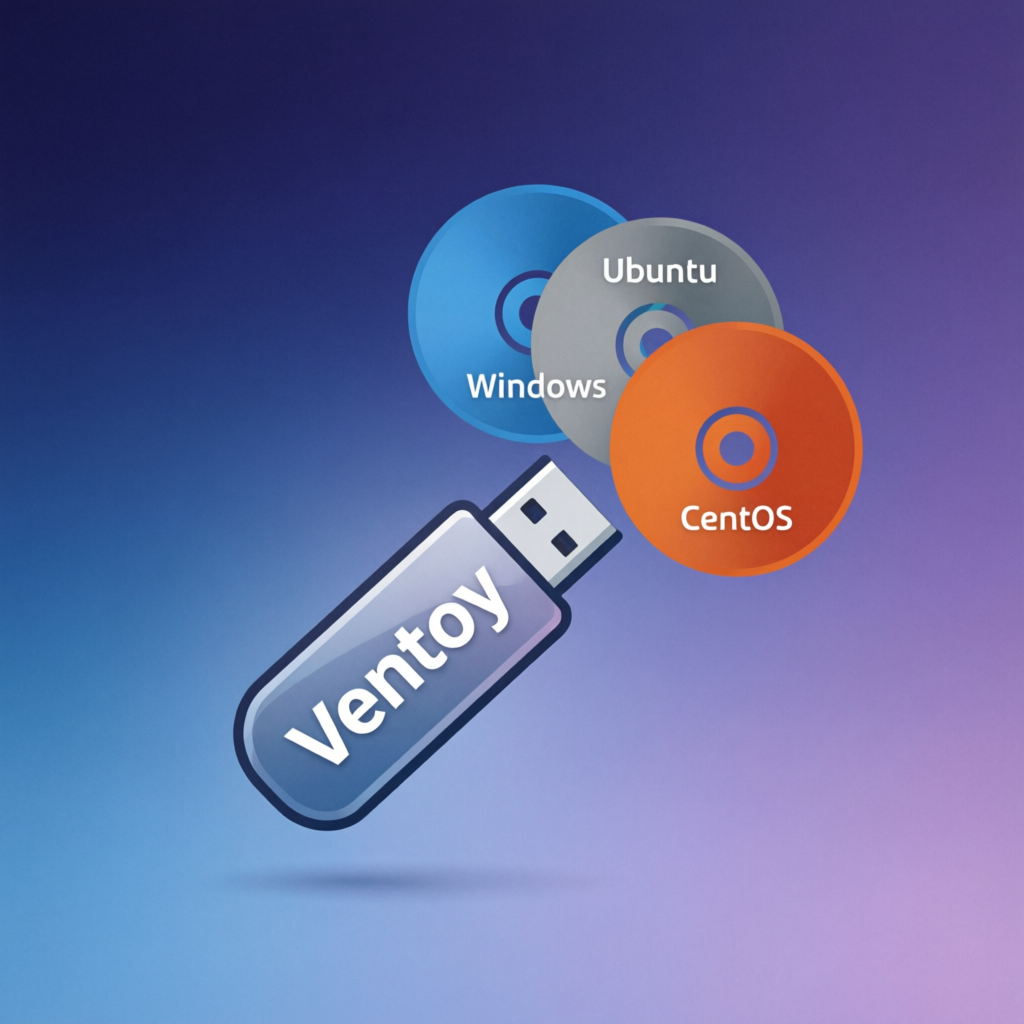
Have you ever prepared multiple boot USB drives just to install different operating systems or run various system maintenance tools? Ventoy was created to solve this hassle. Ventoy is a free and open-source tool that allows you to copy multiple ISO, WIM, IMG, VHD(x) image files to the same USB drive and choose which image to run during boot.
- Background History: Before Ventoy appeared, the traditional approach was to create a separate boot USB drive for each operating system or tool. This method not only wasted USB drive resources but was also troublesome to manage. To solve this problem, Ventoy's developers developed this powerful multi-boot tool based on multiple open-source projects.
- Core Functionality: Ventoy's core functionality lies in allowing users to store ISO files of multiple operating systems and tools on one USB drive, and select boot items through a menu during startup. This greatly simplifies multi-system boot management and saves time and resources.
2. Core Features
Ventoy has many powerful features that make it a very useful tool:
- Multi-boot Capability: This is Ventoy's most core feature. You just need to copy various ISO files to the USB drive, and Ventoy will recognize and list them, allowing you to choose during boot.
- Simple Installation: Ventoy's installation process is very simple, and both Windows and Linux users can get started easily. The installation process won't destroy existing data on the USB drive, and updates are equally simple.
- No Formatting Required: Unlike traditional methods, Ventoy doesn't require you to pre-format the USB drive. Just copy ISO files to the first partition.
- Automatic Image Recognition: Ventoy can automatically search for ISO files in all directories and subdirectories of the USB drive and list them alphabetically in the boot menu. Users can also specify search directories through plugins.
- Support for Multiple File Formats: In addition to ISO files, Ventoy also supports WIM, IMG, VHD, and VHDX files.
- Dual Purpose: Ventoy USB drives can not only be used to boot systems but also store other files like regular USB drives.
- Customization Features: Ventoy provides a powerful plugin system that allows users to customize the appearance and functionality of the boot menu.
- Support for MBR and GPT Partitioning: Ventoy supports both MBR (traditional BIOS) and GPT (UEFI) partitioning methods, suitable for various old and new computers.
3. Usage Tips
Mastering some tips can help you use Ventoy better:
- Installing Ventoy: On Windows, download Ventoy's zip file and extract it, run
Ventoy2Disk.exe, select your USB drive, and click "Install" or "Update". On Linux, download the tar.gz file and extract it, use thesh Ventoy2Disk.shcommand to install or update. - Copying ISO Files: After installation, copy ISO files to the first partition of the USB drive. Ventoy will automatically recognize them.
- Booting Ventoy: Insert the USB drive into the computer, restart the computer and choose to boot from the USB drive. You'll see Ventoy's boot menu and select the ISO file you want to boot.
- Custom File System: Ventoy uses exFAT file system by default, compatible with Windows, Linux, and macOS. You can reformat the first partition to other file systems like FAT32, NTFS, UDF, XFS, Ext2, Ext3, Ext4, etc., but note that if you use XFS, Ext2, Ext3, Ext4 formats, you won't be able to use this USB drive to install systems on Windows.
- Using Reserved Space: Starting from Ventoy 1.0.14, you can reserve some space at the end of the USB drive for creating additional partitions. These partitions can be used to store other files or install other operating systems.
- Backup Personal Files: You can create a folder on the Ventoy USB drive to store personal files. You can also use tools like FBackup to automatically backup personal files to this folder.
- Explore Plugin System: Ventoy provides various plugins to enhance functionality, such as custom menus, specified search directories, etc.
4. Application Cases
Ventoy's application scenarios are very extensive and can meet various user needs:
- System Maintenance and Repair: You can place Windows installation ISOs, Linux distribution ISOs, Hiren's BootCD and other tool ISOs on the Ventoy USB drive for system repair, troubleshooting, and data recovery.
- Multi-system Experience: You can conveniently switch between multiple operating systems without repeatedly installing and uninstalling.
- Software Testing: You can use Ventoy to quickly test various operating systems and software.
- IT Professionals: IT technicians can use Ventoy to centrally manage multiple system tools and installers to improve work efficiency.
- Personal Users: Personal users can use Ventoy to backup personal files and use it as an emergency boot drive to prevent system crashes.
5. Software Limitations
Although Ventoy is powerful, it also has some limitations:
- Compatibility: Although Ventoy is compatible with most systems, there may still be some incompatible situations. You can check the list of compatible ISO files on Ventoy's official website.
- USB Drive Space: The capacity of the USB drive will limit the number of ISO files you can store, so choose a large enough USB drive.
- Reserved Space: Reserved space can only be at the end of the USB drive and cannot be used by Ventoy.
- File System Choice: If you choose Linux-specific file systems (XFS, Ext2, Ext3, Ext4) to format the first partition, you won't be able to use this USB drive to install systems on Windows.
6. Common Questions
- How does Ventoy work? Ventoy divides the USB drive into two partitions: the first partition for storing ISO files, and the second partition for storing UEFI boot files. Ventoy guides the system through a bootloader program.
- What's the difference between MBR and GPT? MBR is used for traditional BIOS systems, while GPT is used for UEFI systems. GPT supports larger hard drives and more partitions.
- What operating systems and tools does Ventoy support? Ventoy supports various ISO-based operating systems and tools, such as Windows, Linux, various system maintenance tools, etc.
- How to update Ventoy? The method to update Ventoy is the same as the installation method and won't affect ISO files on the USB drive.
- What if Ventoy installation fails? If
Ventoy2Disk.exeinstallation fails, you can try using Ventoy LiveCD.
In summary, Ventoy is a powerful and convenient multi-boot USB drive solution. Whether you're an IT professional or an ordinary computer user, Ventoy can bring you great convenience. Its emergence has completely changed the way we manage and use boot USB drives, just as described in the video: "This might be the last USB drive you need!"