Why vphone Is the Most Important iOS Open-Source Project of 2026
If you're an iOS developer, security researcher, or just want to experience a full iOS environment on your Mac, the vphone project open-sourced in September 2026 is absolutely worth your attention. This project gained 421 points and 113 comments on Hacker News, with active discussions in Reddit's r/jailbreak and r/onejailbreak communities for the past 6-7 months.
vphone's core value: It's not a simulator—it's a real iOS virtual machine. Unlike Xcode Simulator which only runs iOS userspace components, vphone uses Apple's official Virtualization.framework and PCC (Platform Code Container) firmware to boot a complete iOS system on Apple Silicon Macs—including the kernel, boot chain, system services, and App Store.
This means you can: - Run a complete iOS 26/27 environment on your Mac - Test real device app behavior (not simulator environment) - Conduct iOS security research and jailbreak development - Automate iOS app testing (supports CDP protocol, Puppeteer, Playwright) - Clone, export, and import VM instances
This article provides a deep analysis of vphone's technical architecture, the differences between its two main versions (vphone-cli and vphone-aio), complete installation and deployment tutorials, and comparisons with Xcode Simulator, Corellium, and other solutions.
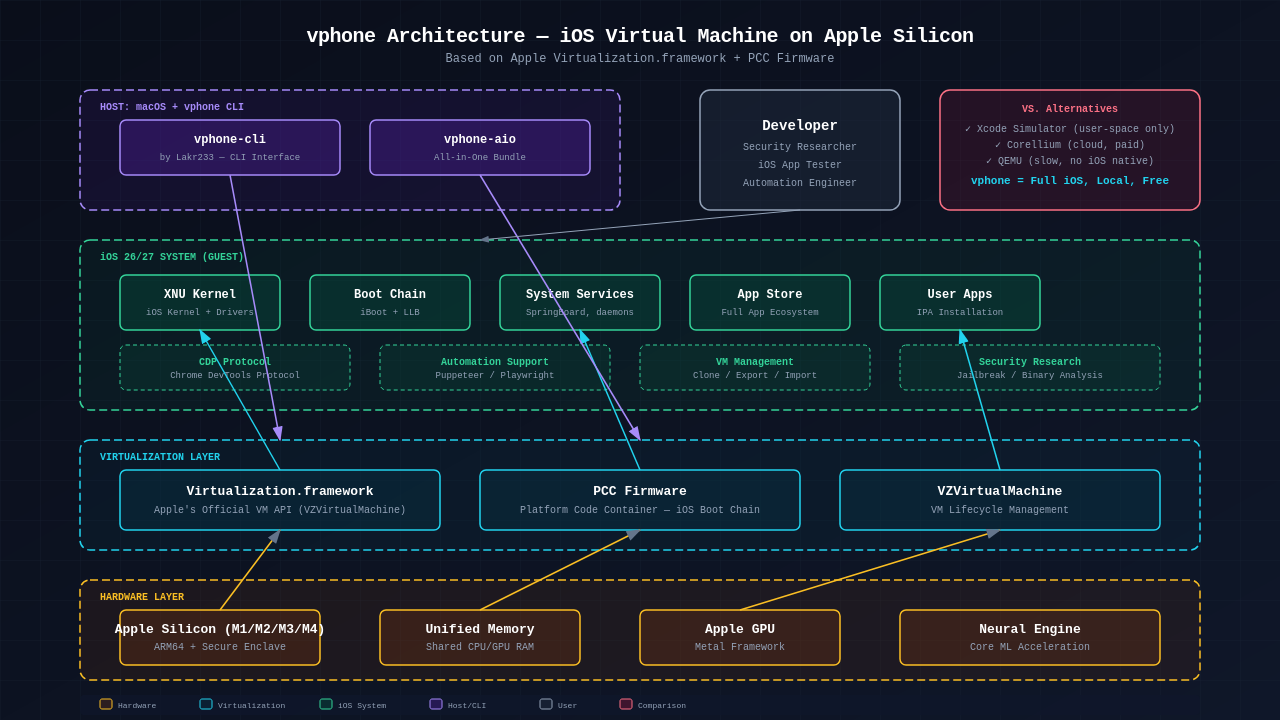 vphone implements full iOS virtualization based on Apple Virtualization.framework and PCC firmware
Technical Architecture: PCC Firmware and Apple Virtualization.framework
Apple Silicon Virtualization Foundation
Apple Silicon (M1/M2/M3/M4) chips have built-in hardware-level virtualization support, which Apple exposes to developers through Virtualization.framework. This framework was originally designed for running macOS and Linux VMs on Mac, but Apple provided iOS kernel images in the iOS 26 PCC (Platform Code Container) firmware.
Key role of PCC firmware: - Provides a virtualized version of the iOS kernel (XNU) - Includes cloudOS components (for iCloud and other services) - Supports the iOS boot chain (iBSS/iBEC, LLB, TXM, kernelcache)
The vphone project's core work pairs these components with iOS userspace and bypasses security restrictions through binary patching, enabling iOS to run completely in a virtualized environment.
vphone Boot Flow
The vphone VM boot process consists of 6 stages:
- Firmware Preparation (fw prepare): Download and merge iPhone IPSW and cloudOS IPSW
- Firmware Patching (fw patch): Binary patch the boot chain to bypass AMFI, SSV, Img4, TXM security checks
- DFU Mode Boot: Boot the VM into DFU (Device Firmware Update) mode
- DFU Restore: Obtain SHSH signature and perform DFU restore
- CFW Install: Install Custom Firmware
- First Boot: Complete iOS initialization setup
This process is fully automated with a single command:
vphone-cli vm create myphone -V jb
Where -V jb indicates the "jailbreak" variant, which automatically installs Sileo and TrollStore.
Five Firmware Variants Explained
vphone-cli provides five firmware variants with different security levels for various use cases:
| Variant | Boot Chain Patches | CFW Phases | Description |
|---|---|---|---|
| less | 4 patches | 2 phases | Patchless—keeps all iOS security mitigations enabled |
| regular | 42 patches | 10 phases | Bypasses AMFI/SSV/Img4/TXM |
| dev | 53 patches | 12 phases | + TXM entitlement/debug bypass |
| jb | 113 patches | 14 phases | + Full jailbreak (Sileo, TrollStore auto-install) |
| exp | 141 patches | 18 phases | JB superset + anti-VM-detection research patches |
For most developers, the jb variant is recommended—it provides a complete jailbreak environment for installing third-party app stores and debugging tools. If you only need a basic iOS environment without jailbreak, the less or regular variants are safer.
vphone-cli vs vphone-aio: Two Versions Compared
vphone-cli: Command-Line Tool (For Developers and Security Researchers)
vphone-cli is a command-line tool developed by Lakr233, built on Apple Virtualization.framework. It provides complete VM lifecycle management:
Core features:
- Fully command-line driven, ideal for automation and scripting
- Manual control over each build stage (firmware prep, patching, DFU restore, CFW install)
- VM clone, export, import capabilities (using APFS fast clone and zstd compression)
- JSON output support (--json flag) for integration with other tools
- All data stored under ~/.vphone/, customizable via environment variables
Installation:
# Install via Homebrew (recommended)
brew install zqxwce/tap/vphone-cli

# Or build from source
git clone --recurse-submodules https://github.com/Lakr233/vphone-cli.git
./scripts/setup_tools.sh      # Install deps, build toolchain submodules, create Python venv
./scripts/build.sh            # Build + sign vphone-cli, bundle .app, cross-compile vphoned
System requirements: - Apple Silicon Mac (M1/M2/M3/M4) - macOS 15+ (Sequoia) - Xcode + iOS SDK (for cross-compiling guest daemon) - SIP/AMFI relaxation (to allow private PV=3 entitlements)
Common commands:
# Create and launch VM (one-shot)
vphone-cli vm create myphone -V jb
vphone-cli vm launch myphone

# List all VMs
vphone-cli vm list

# View VM details
vphone-cli vm info myphone

# Clone VM (fast APFS clone, new device identity)
vphone-cli vm clone myphone myphone-2

# Export VM (zstd compression)
vphone-cli vm export myphone --out myphone.tzst

# Import VM
vphone-cli vm import myphone.tzst --name restored

# Adjust VM configuration
vphone-cli vm config myphone --cpu 8 --memory 8192
Connecting to VM:
- SSH: ssh root@<vm-ip> (default password: alpine)
- Screen Sharing: Connect via macOS "Screen Sharing" app
vphone-aio: All-in-One Solution (For Regular Users)
vphone-aio is an all-in-one version maintained by developer 34306, which directly packages pre-restored, jailbreak Bootstrap pre-installed disk images.
Core features: - Pre-built disk images, no manual complex build process - Supports iOS 26.1 / 27+ versions - Graphical interface (accessed via macOS Screen Sharing) - One-click launch script, lowers the barrier to entry
Use cases: - Users who don't want to deal with the command line - Developers wanting to quickly experience iOS VMs - Testers needing stable, reproducible environments
Usage:
# Download vphone-aio release package
# Download pre-built images from GitHub Releases

# Run the launch script
./start-vphone.sh

# Connect via macOS "Screen Sharing"
open -a "Screen Sharing" vphone://localhost
vphone-cli vs vphone-aio comparison summary:
| Feature | vphone-cli | vphone-aio |
|---|---|---|
| Usage | Command-line tool | Pre-built images + launch script |
| Learning curve | Steeper | Gentle |
| Flexibility | High (full control over each stage) | Low (out-of-the-box) |
| Automation support | Excellent (JSON output, scriptable) | Moderate |
| Target audience | Developers, security researchers | Regular users, quick experiencers |
| Maintainer | Lakr233 | 34306 |
Complete Deployment Tutorial: Building an iOS VM from Scratch
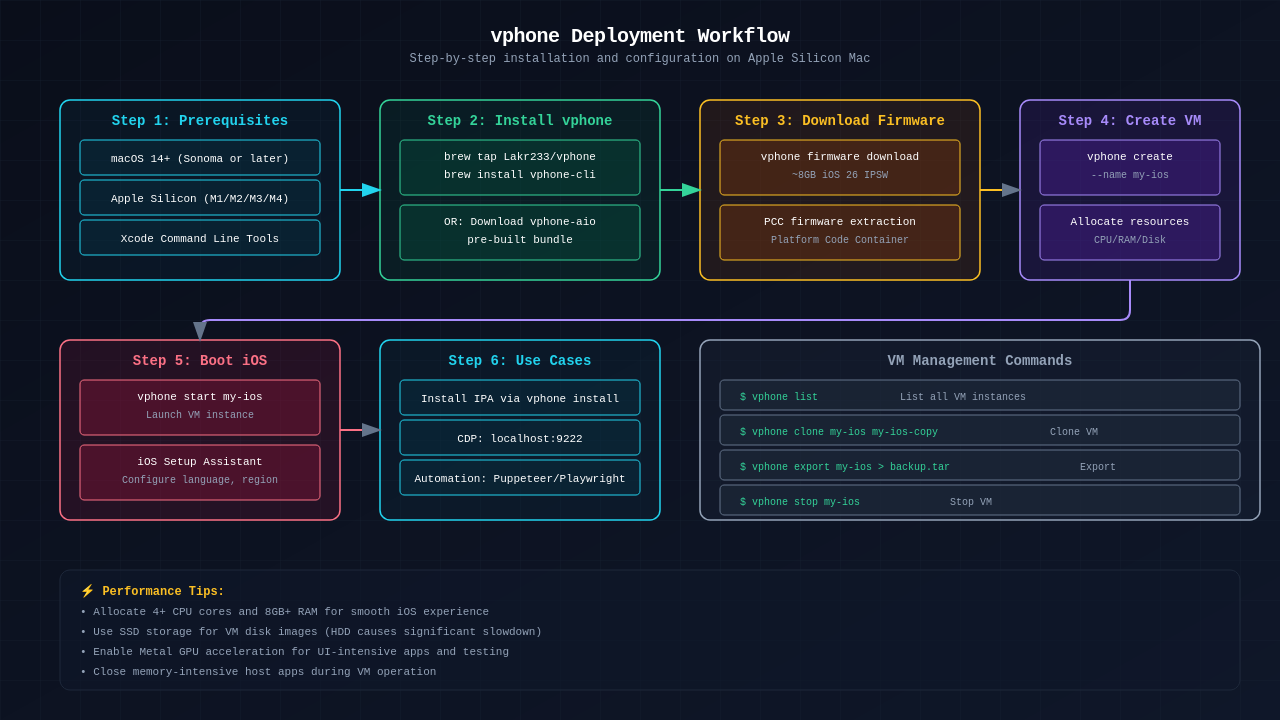 Complete workflow from firmware download to first boot
Prerequisites
Before starting, ensure your Mac meets these requirements:
- Hardware: Apple Silicon Mac (M1/M2/M3/M4)
- System: macOS 15 Sequoia or later
- Storage: At least 20GB free space (VM image + cache)
- Memory: 16GB+ recommended (VM defaults to 8GB allocation)
Step 1: Install Dependencies
# Install vphone-cli and its dependencies
brew install python@3.13 aria2 wget gnu-tar openssl@3 ldid-procursus sshpass keystone cmake libusb ipsw zstd

# Install vphone-cli
brew install zqxwce/tap/vphone-cli
Step 2: Configure SIP/AMFI
vphone requires relaxing the system's SIP (System Integrity Protection) and AMFI (Apple Mobile File Integrity) to allow private entitlements.
Option A: Fully disable SIP (most permissive)
- Reboot Mac into Recovery Mode (long-press power button)
- Open Terminal and execute:
csrutil disable
csrutil allow-research-guests enable
- Reboot into macOS, set AMFI boot argument:
sudo nvram boot-args="amfi_get_out_of_my_way=1 -v"
- Reboot Mac
Option B: Keep SIP enabled (debug-only relaxed)
- Reboot into Recovery Mode, execute:
csrutil enable --without debug
csrutil allow-research-guests enable
- Reboot into macOS, run:
vphone-amfidont # Located at .build/vphone-cli.app/Contents/Resources/vphone-amfidont
Note: Option B is safer as it maintains system integrity protection while only relaxing debug restrictions.
Step 3: Create VM
One-click creation (recommended):
# Create a VM named "myphone" using jailbreak variant
vphone-cli vm create myphone -V jb

# Launch the VM
vphone-cli vm launch myphone
This command automatically completes: - Download iPhone IPSW and cloudOS IPSW - Merge and patch firmware - Perform DFU restore - Install custom firmware - First boot of the VM
Manual build (advanced users):
If you want full control over each stage:
# 1. Create empty VM bundle
vphone-cli vm new myphone

# 2. Download and merge IPSW (specify iOS version)
vphone-cli fw prepare myphone --iphone-version 26.1

# 3. Patch boot chain
vphone-cli fw patch myphone --variant jb

# 4. Boot into DFU mode (background)
vphone-cli vm launch myphone --dfu &

# 5. Get SHSH signature and perform DFU restore
vphone-cli restore myphone --get-shsh
vphone-cli restore myphone

# 6. Stop DFU boot
vphone-cli vm stop myphone

# 7. Install custom firmware (requires sudo)
vphone-cli cfw install myphone --variant jb

# 8. First boot
vphone-cli vm launch myphone
Step 4: Connect and Use the VM
SSH connection:
# View VM IP (via vphone-cli or router admin)
vphone-cli vm info myphone

# SSH connection (default password: alpine)
ssh root@<vm-ip>
Screen Sharing (GUI access):
- Open macOS "Screen Sharing" app
- Enter the VM's IP address or hostname
- Login with default credentials (username: root, password: alpine)
iOS initialization setup:
On first boot, you'll need to complete iOS standard setup: - Select language and region (Note: Don't select Japan or EU regions, as they trigger extra compliance checks the VM can't satisfy) - Connect to Wi-Fi - Set up Apple ID (optional) - Enable/disable location services
Important: During iOS setup, don't select Japan or EU as your region. These regions have extra third-party app store compliance checks that the VM cannot satisfy, causing setup to fail.
Step 5: Install Apps and Debug
Jailbreak environment (jb variant):
If you used the -V jb variant, the VM automatically installs:
- Sileo: Third-party app store
- TrollStore: Tool for installing unsigned apps without jailbreak
You can install various debugging tools through Sileo: - OpenSSH (pre-installed) - Cycript (JavaScript injection) - Frida (dynamic analysis) - class-dump (header file export)
Automated testing (CDP protocol):
vphone supports Chrome DevTools Protocol (CDP), integrating with Puppeteer, Playwright, and other automation frameworks:
# Launch VM with CDP enabled
vphone-cli vm launch myphone --cdp-port 9222

# Connect with Puppeteer
const puppeteer = require('puppeteer');
const browser = await puppeteer.connect({
  browserURL: 'http://localhost:9222'
});
Comparison with Xcode Simulator and Corellium
Xcode Simulator
Xcode Simulator is Apple's official iOS simulator, but it differs fundamentally from vphone:
| Feature | Xcode Simulator | vphone |
|---|---|---|
| Execution | Runs iOS userspace components (compiled as macOS binaries) | Runs full iOS kernel + userspace |
| Kernel | Uses macOS kernel | Uses real iOS XNU kernel |
| App compatibility | Some apps can't run (those depending on real device features) | Nearly all apps can run |
| Jailbreak support | Not supported | Full support (jb/exp variants) |
| Performance | Faster (native macOS binaries) | Near-native (hardware virtualization) |
| Use cases | UI testing, interface debugging | Full functional testing, security research, jailbreak development |
When to use Xcode Simulator: - Quick UI testing and interface debugging - App development not requiring real device features - Scenarios not requiring jailbreak environment
When to use vphone: - Apps needing real device behavior testing - Security research and vulnerability analysis - Jailbreak development and third-party app store testing - Automated testing requiring full iOS environment
Corellium
Corellium is a commercial iOS virtualization platform providing cloud and self-hosted iOS VMs.
| Feature | Corellium | vphone |
|---|---|---|
| Price | Commercial license (expensive) | Completely open-source and free |
| Deployment | Cloud or self-hosted | Local (Apple Silicon Mac) |
| Hardware requirements | None (cloud) or dedicated server | Apple Silicon Mac |
| Jailbreak support | Supported | Full support |
| Automation | Supported | Supported (CDP protocol) |
| Community support | Commercial support | Open-source community |
| App detection | Hard to distinguish (highly emulated) | Apps can distinguish (VM environment) |
Key difference:
According to Hacker News community discussion, Corellium is true iPhone emulation, while vphone is virtualization. Corellium uses high-fidelity emulation making it hard for apps to distinguish VM from real device, while vphone's apps can be identified through certain detection methods.
When to use Corellium: - Security research requiring high-fidelity emulation - Enterprise iOS testing infrastructure - Professional teams with sufficient budget
When to use vphone: - Individual developers and security researchers - Budget-constrained projects - Local development and testing - Open-source community collaboration
Real-World Use Cases
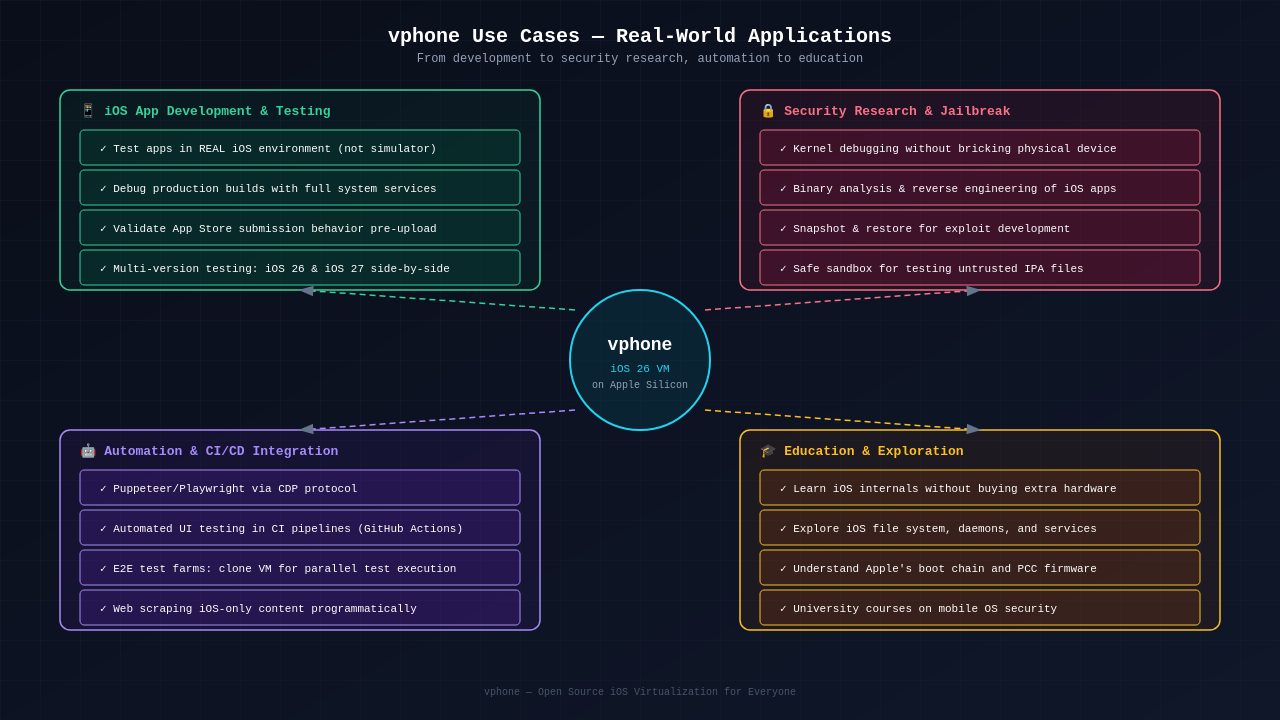 From development and testing to security research and automation
Use Case 1: iOS App Compatibility Testing
If you're developing iOS apps and need to test in a real iOS environment without carrying multiple devices:
# Create multiple VMs (simulating different iOS versions)
vphone-cli vm create ios26-test -V jb
vphone-cli vm create ios27-test -V jb

# Install app via SSH
scp MyApp.ipa root@<vm-ip>:/var/mobile/
ssh root@<vm-ip> "ideviceinstaller -i /var/mobile/MyApp.ipa"

# Run automated test scripts
./run-tests.sh <vm-ip>
Use Case 2: iOS Security Research
As a security researcher analyzing iOS app behavior or researching iOS kernel vulnerabilities:
# Create jailbreak environment
vphone-cli vm create research-env -V jb

# SSH connect and install analysis tools
ssh root@<vm-ip>

# Inside the VM
apt update
apt install frida cycript class-dump

# Dynamic analysis with Frida
frida-ps -U  # List running processes
frida -U -f com.example.app -l hook.js  # Inject script
Use Case 3: CI/CD Automated Testing
Using vphone for automated testing in continuous integration:
#!/bin/bash
# ci-test.sh

# Create test VM
vphone-cli vm create ci-test --json > vm-info.json
VM_IP=$(jq -r '.ip' vm-info.json)

# Wait for VM to boot
sleep 30

# Install app
scp MyApp.ipa root@$VM_IP:/var/mobile/
ssh root@$VM_IP "ideviceinstaller -i /var/mobile/MyApp.ipa"

# Run automated tests
xcodebuild test -scheme MyApp -destination "id=$VM_IP"

# Cleanup
vphone-cli vm delete ci-test
Use Case 4: Multi-Device Parallel Testing
Testing app behavior across different configurations:
# Create multiple VMs (different CPU/memory configs)
vphone-cli vm create test-low --cpu 2 --memory 2048
vphone-cli vm create test-mid --cpu 4 --memory 4096
vphone-cli vm create test-high --cpu 8 --memory 8192

# Run tests in parallel
for vm in test-low test-mid test-high; do
  vphone-cli vm launch $vm &
done

# Collect test results
# ...
Common Issues and Troubleshooting
1. zsh: killed ./vphone-cli
Cause: AMFI/debug restrictions not properly bypassed.
Solution:
- Confirm SIP/AMFI configured per "Step 2"
- If using Option B, ensure vphone-amfidont was run
- Reboot Mac and retry
2. Firmware download fails or times out
Cause: Apple server restrictions or network issues.
Solution:
# Manually download IPSW and specify local paths
vphone-cli fw prepare myphone \
  --iphone-source /path/to/iphone.ipsw \
  --cloudos-source /path/to/cloudos.ipsw
3. iOS setup process gets stuck
Cause: Selected Japan or EU region, triggering extra compliance checks.
Solution:
- Recreate VM: vphone-cli vm delete myphone && vphone-cli vm create myphone -V jb
- Select US, Canada, or other non-EU/Japan region during setup
4. SSH connection fails
Cause: VM IP changed or SSH service not started.
Solution:
# Check VM status and IP
vphone-cli vm info myphone

# If IP changed, update SSH config
# Or use hostname (if DNS configured)
ssh root@myphone.local
5. VM performance is slow
Cause: Insufficient resource allocation or high host load.
Solution:
# Increase CPU and memory
vphone-cli vm config myphone --cpu 8 --memory 8192

# Close unnecessary host applications
# Ensure Mac has sufficient free memory
6. Apps detect VM environment
Cause: vphone's VM environment differs from real devices, some apps can detect it.
Solution:
- Use exp variant (includes anti-detection patches): vphone-cli vm create myphone -V exp
- Note: This isn't 100% effective, some apps may still detect
Community Feedback and Latest Developments
GitHub Activity
The vphone project remains active on GitHub: - vphone-cli (Lakr233): Continuous updates, issue fixes, new features - vphone-aio (34306): Maintains pre-built images, supports latest iOS versions
Reddit Community Discussion
Reddit's r/jailbreak and r/onejailbreak communities have actively discussed vphone for the past 6-7 months: - Users share experiences and tips - Report issues and solutions - Discuss jailbreak development and reverse engineering applications
Hacker News Discussion Highlights
In the Hacker News discussion (421 points, 113 comments), key community focus areas:
- Difference from Corellium: As mentioned, vphone is virtualization not emulation, apps can distinguish
- Region selection issue: Avoid selecting Japan/EU regions
- Security research value: Provides low-cost, local environment for iOS security research
- Open-source significance: Lowers the barrier to iOS virtualization, promotes community collaboration
Future Development Directions
According to project maintainer discussions, vphone's future development includes: - Supporting more iOS versions (iOS 27+) - Improving anti-detection capabilities - Optimizing performance (reducing boot time, lowering resource usage) - Enhancing automation support (better CDP integration)
Summary
vphone is one of the most important iOS open-source projects of 2026, providing developers, security researchers, and iOS enthusiasts with a low-cost solution for running complete iOS environments on Apple Silicon Macs.
Core advantages: - Completely open-source and free - Based on Apple's official Virtualization.framework, near-native performance - Full jailbreak environment support (Sileo, TrollStore) - Provides both command-line and all-in-one usage options - Active community support
Target audience: - iOS developers (app testing, compatibility verification) - Security researchers (vulnerability analysis, reverse engineering) - Jailbreak developers (plugin development, tool testing) - Automation test engineers (CI/CD integration)
Considerations: - Requires Apple Silicon Mac and macOS 15+ - Requires SIP/AMFI relaxation (certain security risks) - Apps can detect VM environment (not suitable for scenarios requiring high-fidelity emulation)
If you need to run a complete iOS environment on your Mac, vphone is currently the best open-source solution. Try it now and start your iOS virtualization journey!
References: - vphone-cli GitHub repository - vphone-aio GitHub repository - Hacker News discussion - Apple Virtualization.framework documentation
FAQ
Q1: Can vphone run on Intel Macs?
A: No. vphone relies on Apple Silicon chip hardware virtualization support and can only run on M1/M2/M3/M4 chip Macs. Intel Macs don't support Apple's Virtualization.framework.
Q2: Can the iOS environment running on vphone install App Store apps?
A: Yes, but with limitations. You can sign in with Apple ID and download apps, but some apps may detect the VM environment and refuse to run. Additionally, don't select Japan or EU regions, as they trigger extra compliance checks.
Q3: What's the difference between vphone and Xcode Simulator?
A: Xcode Simulator only runs iOS userspace components (compiled as macOS binaries), while vphone runs the full iOS kernel and userspace. vphone can run nearly all iOS apps and supports jailbreak, while Xcode Simulator is mainly for UI testing and doesn't support jailbreak.
Q4: How much storage space does vphone require?
A: At least 20GB free space. The VM image itself is about 8-10GB, plus firmware cache, Python virtual environment, and other temporary files, totaling 15-20GB.
Q5: Can vphone be used in production environments?
A: Not recommended. vphone is primarily for development, testing, and research purposes. It requires relaxing system security restrictions (SIP/AMFI), making it unsuitable for production. Additionally, the VM environment can be detected by apps, not suitable for scenarios requiring high-fidelity emulation.
Q6: How do I update the VM's iOS version?
A: You need to recreate the VM. vphone currently doesn't support upgrading iOS versions on existing VMs. You can export old VM data, create a new VM, then import.
Q7: Does vphone support multiple instances?
A: Yes. You can create multiple VM instances, each with independent device identity. But be mindful of your Mac's hardware resources (CPU, memory, storage) limitations.