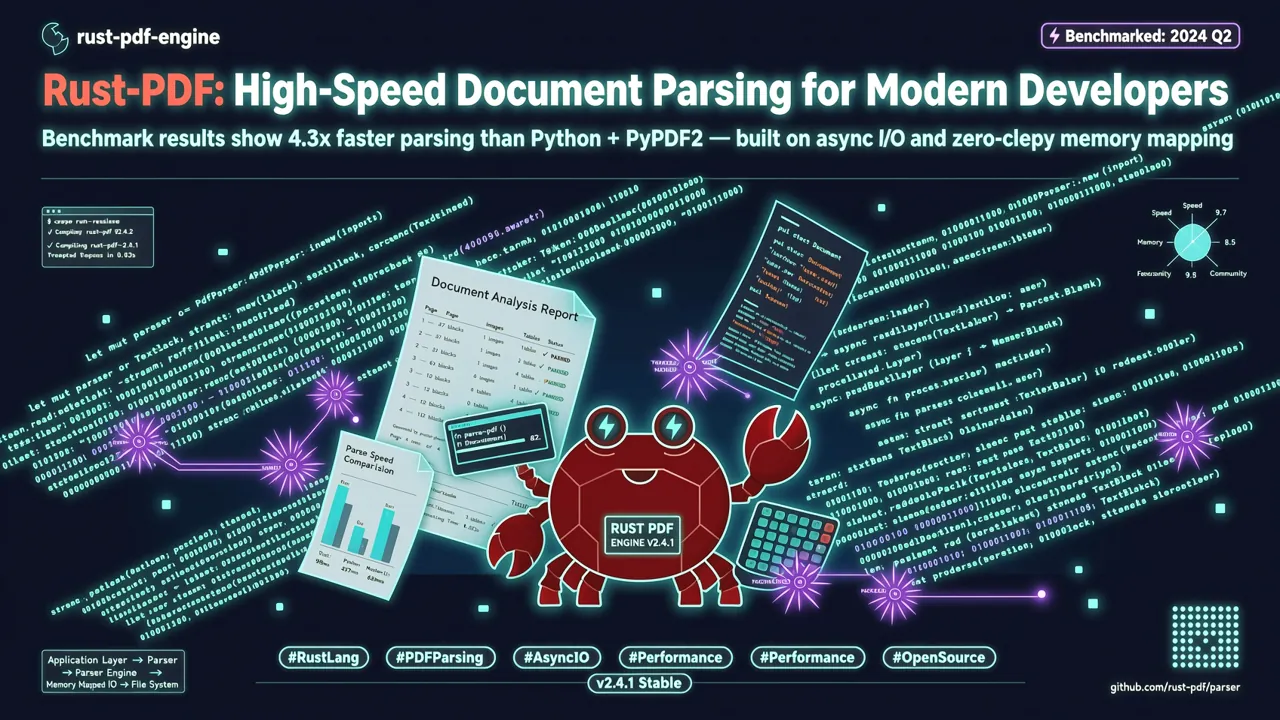
引言:PDF 解析的痛點
作為開發者,處理 PDF 文件是一個繞不開的需求——發票解析、合約提取、論文爬取、資料歸檔,幾乎每個後端專案都會遇到。但 PDF 解析長期以來是個痛點:
- OCR 服務昂貴:呼叫雲 OCR API 每頁幾毛錢,量大成本驟增
- 開源方案慢:PyMuPDF4LLM 處理 200 份文件需要 17 秒,MarkItDown 需要 16 秒
- 格式丟失:傳統提取工具只吐純文字,標題層級、表格結構、程式碼區塊全丟了
- 智慧路由缺失:無法自動區分掃描件和原生文字 PDF,導致對不需要 OCR 的文件也走 OCR 流程
2026 年 7 月,知名網頁爬取平台 Firecrawl 開源了一個 Rust 編寫的 PDF 解析函式庫 pdf-inspector,上線僅數週就拿下 7,900+ Stars,GitHub Trending 日榜前三。它承諾在 200ms 內完成本機 PDF 分類和文字提取,自動輸出帶格式的 Markdown——無需 OCR,無需外部服務。
今天我們就來深度體驗這個專案,看看它憑什麼能在效能上輾壓主流方案。
pdf-inspector 是什麼?
pdf-inspector 是 Firecrawl 團隊用 Rust 編寫的 PDF 分類和文字提取函式庫,核心能力包括:
- 智慧分類 — 在 10-50ms 內偵測 PDF 類型:原生文字(TextBased)、掃描件(Scanned)、圖片型(ImageBased)或混合型(Mixed),返回信賴度和逐頁 OCR 路由建議
- 文字提取 — 帶位置感知的文字提取,包含字型資訊、X/Y 座標、自動多欄閱讀順序
- Markdown 轉換 — 自動識別 H1-H4 標題、列表、程式碼區塊(等寬字型偵測)、表格、粗斜體、URL 連結和分頁符
- 表格偵測 — 雙模式表格偵測(基於 PDF 繪製操作的矩形偵測 + 基於文字對齊的啟發式偵測),完美處理財務報表和跨頁表格
- CID 字型支援 — ToUnicode CMap 解碼,支援 Type0/Identity-H 字型、UTF-16BE、UTF-8 和 Latin-1 編碼
- 多語言綁定 — 提供 Python、Node.js 和瀏覽器 WebAssembly 綁定
為什麼用 Rust? Rust 的零成本抽象和記憶體安全特性讓 pdf-inspector 在不依賴 ML 模型和外部服務的情況下,實現了極致的解析速度。整個函式庫只有一個外部依賴:lopdf(Rust PDF 解析函式庫)。
效能對比
根據官方在 Apple M4 Pro 上的基準測試(200 份文件,opendataloader-bench 語料庫):
| 引擎 | 綜合成績 | 閱讀順序 | 表格識別 | 標題識別 | 200 文件耗時 |
|---|---|---|---|---|---|
| pdf-inspector | 0.875 | 0.915 | 0.814 | 0.788 | 0.470s |
| LiteParse | 0.873 | 0.913 | 0.693 | 0.811 | 0.750s |
| OpenDataLoader | 0.831 | 0.902 | 0.489 | 0.739 | 2.569s |
| PyMuPDF4LLM | 0.735 | 0.886 | 0.401 | 0.424 | 17.169s |
| MarkItDown | 0.589 | 0.844 | 0.273 | 0.000 | 16.117s |
pdf-inspector 在綜合成績、閱讀順序、表格識別和速度上均全面領先,耗時僅為 PyMuPDF4LLM 的 1/36、MarkItDown 的 1/34。
安裝
pdf-inspector 支援多種安裝方式,涵蓋 Rust、Python、Node.js 和瀏覽器環境。
Rust(原生)
在 Cargo.toml 中添加相依套件:
[dependencies]
pdf-inspector = "0.2"
或透過 cargo 命令列安裝:
cargo add pdf-inspector
Python
pdf-inspector 透過 maturin 提供 Python 綁定:
pip install maturin
git clone https://github.com/firecrawl/pdf-inspector.git
cd pdf-inspector
maturin develop --release
💡 提示: 目前 PDF-inspector 尚未發布到 PyPI,需要透過原始碼編譯安裝。Firecrawl 團隊計畫在穩定後發布 PyPI 套件。
Node.js
npm install @firecrawl/pdf-inspector
瀏覽器 WebAssembly
npm install @firecrawl/pdf-inspector-wasm
Wasm 版本將完整的 Rust 解析器嵌入瀏覽器,可以在 Web Worker 中執行,無需伺服器往返。
快速上手
Python 範例
安裝完成後,使用非常簡單——只需呼叫一個函式:
import pdf_inspector

# 處理單個 PDF 檔案
result = pdf_inspector.process_pdf("document.pdf")

# 檢視 PDF 類型分類
print(f"PDF 類型: {result.pdf_type}")
# 輸出: "text_based", "scanned", "image_based", 或 "mixed"

# 獲取 Markdown 輸出
if result.markdown:
    print(result.markdown)
就這麼簡單。一行程式碼,完成分類 + 提取 + Markdown 轉換。
Node.js 範例
const { processPdf } = require('@firecrawl/pdf-inspector');
const fs = require('fs');

async function analyzePdf(filePath) {
  const pdfBuffer = fs.readFileSync(filePath);
  const result = await processPdf(pdfBuffer);

  console.log('PDF 類型:', result.pdfType);
  console.log('信賴度:', result.confidence);
  console.log('--- Markdown 輸出 ---');
  console.log(result.markdown);
}

analyzePdf('report.pdf');
Rust 原生範例
use pdf_inspector::{PdfInspector, ProcessPdfResult};

fn main() -> Result<(), Box<dyn std::error::Error>> {
    let inspector = PdfInspector::new();
    let result: ProcessPdfResult = inspector.process_pdf_path("document.pdf")?;

    println!("PDF 類型: {:?}", result.pdf_type);
    println!("信賴度: {:.2}", result.confidence);

    if let Some(markdown) = result.markdown {
        println!("Markdown:\n{}", markdown);
    }

    Ok(())
}
核心功能詳解
1. 智慧分類:避免不必要的 OCR 開銷
pdf-inspector 最實用的功能之一是自動分類。它透過對 PDF 內容流進行取樣,在 10-50ms 內判斷文件類型:
| 類型 | 說明 | 建議處理策略 |
|---|---|---|
text_based |
原生文字 PDF,包含可提取的文字內容流 | 直接用 pdf-inspector 提取,跳過 OCR |
scanned |
掃描件(圖片型頁面) | 需要 OCR 服務 |
image_based |
以圖片為主的 PDF(如截圖集合) | 需要 OCR 或圖片處理 |
mixed |
混合類型(部分頁面有文字,部分是掃描件) | 逐頁決定:文字頁直接提取,掃描頁呼叫 OCR |
實戰場景:建構智慧 PDF 處理管道
import pdf_inspector
# 假設你有自己的 OCR 函式
def smart_pdf_pipeline(pdf_path, ocr_function):
    result = pdf_inspector.process_pdf(pdf_path)

    if result.pdf_type == "text_based":
        # 原生文字,直接提取——快速、免費、準確
        print("✅ 原生文字 PDF,直接提取")
        return result.markdown

    elif result.pdf_type == "scanned":
        # 掃描件,呼叫 OCR
        print("🔍 掃描件 PDF,呼叫 OCR")
        return ocr_function(pdf_path)

    elif result.pdf_type == "mixed":
        # 混合型——逐頁處理
        print("📄 混合型 PDF,逐頁路由")
        pages = []
        for page_info in result.page_results:
            if page_info.needs_ocr:
                pages.append(ocr_function_for_page(pdf_path, page_info.page_number))
            else:
                pages.append(page_info.markdown)
        return "\n\n".join(pages)

    else:
        # 純圖片型,無法提取文字
        print("❌ 圖片型 PDF,無法提取文字")
        return None
這個管道可以對約 54% 的 PDF(原生文字型)完全跳過 OCR,大幅降低處理成本和延遲。
2. Markdown 轉換:保留文件結構
pdf-inspector 的 Markdown 輸出不僅僅是純文字——它會智慧識別並保留文件的結構資訊:
- 標題層級(H1-H4):透過字型大小比例自動推斷
- 列表:自動識別項目符號列表、編號列表、字母編號列表
- 程式碼區塊:透過等寬字型偵測自動標記為程式碼區塊
- 表格:支援矩形偵測和啟發式偵測,處理財務報表和跨頁表格
- 粗斜體:保留粗體和斜體格式
- URL 連結:自動識別並轉換為 Markdown 連結格式
- 分頁符:用
---分隔不同頁面
來看看實際效果。假設有一份學術論文 PDF:
# Deep Learning Approaches for Natural Language Processing

## 1. Introduction

Natural language processing (NLP) has seen remarkable progress in recent years...

### 1.1 Background

The transformer architecture, introduced by Vaswani et al., has become...

## 2. Methodology

| Model | BLEU Score | Training Time |
|-------|-----------|---------------|
| Transformer | 38.2 | 12 hours |
| BERT | 41.0 | 24 hours |
| GPT-4 | 45.7 | 72 hours |

## 3. Results

The experimental results demonstrate...

> **Note:** All experiments were conducted on...
標題層級、表格、引用區塊都完整保留了,這比傳統 PDF 提取工具只輸出純文字強太多。
3. 多欄和閱讀順序偵測
很多 PDF(如論文、報紙、雜誌)採用多欄版面配置。pdf-inspector 會自動偵測欄結構並按正確的閱讀順序提取:
result = pdf_inspector.process_pdf("newspaper.pdf")

# pdf-inspector 自動偵測雙欄/三欄版面配置
# 並按從上到下、從左到右的正確順序輸出
print(result.markdown)
同時支援 RTL(從右到左)文字,適合阿拉伯語、希伯來語等文件。
4. CID 字型與編碼問題偵測
處理中文、日文、韓文 PDF 時,字型編碼常常出問題。pdf-inspector 支援 ToUnicode CMap 解碼,能正確處理:
- Type0 / Identity-H 字型
- UTF-16BE、UTF-8 和 Latin-1 編碼
- 自動標記破損的字型編碼
這意味著處理中日韓文 PDF 時,它能告訴你哪些頁面可能有亂碼風險,讓你提前決定是否需要 OCR 回退。
進階實戰:建構 PDF 處理服務
下面我們來建構一個完整的 PDF 處理微服務,整合 pdf-inspector 的智慧分類能力。
場景:文件歸檔系統
假設你在搭建一個企業內部文件歸檔系統,每天需要處理數百份 PDF(合約、發票、報告等):
# pdf_service.py
import os
import json
from datetime import datetime
import pdf_inspector

class PdfProcessingService:
    def __init__(self, output_dir="./processed"):
        self.output_dir = output_dir
        os.makedirs(output_dir, exist_ok=True)

    def process_batch(self, pdf_files):
        """批次處理 PDF 檔案"""
        results = []
        for pdf_path in pdf_files:
            result = self.process_single(pdf_path)
            results.append(result)
        return results

    def process_single(self, pdf_path):
        """處理單個 PDF 檔案"""
        filename = os.path.basename(pdf_path)
        pdf_result = pdf_inspector.process_pdf(pdf_path)

        # 提取元資訊
        metadata = {
            "filename": filename,
            "pdf_type": pdf_result.pdf_type,
            "confidence": pdf_result.confidence,
            "processed_at": datetime.now().isoformat(),
            "pages_count": len(pdf_result.page_results) if hasattr(pdf_result, 'page_results') else 0,
            "needs_ocr": pdf_result.pdf_type in ("scanned", "image_based"),
        }

        # 儲存 Markdown 輸出
        if pdf_result.markdown:
            md_filename = filename.replace(".pdf", ".md")
            md_path = os.path.join(self.output_dir, md_filename)
            with open(md_path, "w", encoding="utf-8") as f:
                f.write(pdf_result.markdown)
            metadata["markdown_path"] = md_path

        # 儲存元資訊
        meta_path = os.path.join(
            self.output_dir,
            filename.replace(".pdf", ".meta.json")
        )
        with open(meta_path, "w", encoding="utf-8") as f:
            json.dump(metadata, f, ensure_ascii=False, indent=2)

        return metadata

# 使用範例
service = PdfProcessingService(output_dir="./output")

# 批次處理
pdf_files = [
    "contracts/contract_2026_001.pdf",
    "invoices/invoice_aug_2026.pdf",
    "reports/q2_financial_report.pdf",
]

results = service.process_batch(pdf_files)
for r in results:
    status = "需要 OCR" if r["needs_ocr"] else "已直接提取"
    print(f"{r['filename']}: {r['pdf_type']} ({status})")
場景:與 LLM 文件分析管道整合
pdf-inspector 輸出的高品質 Markdown 可以直接餵給 LLM 進行分析:
import pdf_inspector
# 假設你使用 OpenAI 相容 API
from openai import OpenAI

def analyze_pdf_with_llm(pdf_path, prompt="總結這份文件的主要內容"):
    """用 LLM 分析 PDF 內容"""
    # 1. 用 pdf-inspector 提取 Markdown
    result = pdf_inspector.process_pdf(pdf_path)

    if not result.markdown:
        return "無法提取文字內容,可能需要 OCR"

    # 2. 如果文件太長,截取前 8000 字元
    markdown_content = result.markdown[:8000]

    # 3. 呼叫 LLM 分析
    client = OpenAI(api_key="YOUR_API_KEY")
    response = client.chat.completions.create(
        model="gpt-4o",
        messages=[
            {"role": "system", "content": "你是一個文件分析助手。"},
            {"role": "user", "content": f"請基於以下文件內容{prompt}:\n\n{markdown_content}"}
        ]
    )

    return response.choices[0].message.content

# 使用
summary = analyze_pdf_with_llm("annual_report.pdf", "提取關鍵財務指標")
print(summary)
這種管道在 RAG(檢索增強生成)系統中特別有用——先用 pdf-inspector 快速提取結構化文字,再向量化存入知識庫。
與其他方案的對比
pdf-inspector vs PyMuPDF4LLM
| 維度 | pdf-inspector | PyMuPDF4LLM |
|---|---|---|
| 語言 | Rust | Python (C 綁定) |
| 綜合成績 | 0.875 | 0.735 |
| 表格識別 | 0.814 | 0.401 |
| 速度(200 文件) | 0.47s | 17.169s |
| Markdown 結構 | ✅ 完整保留 | ⚠️ 部分丟失 |
| 智慧分類 | ✅ 內建 | ❌ 無 |
| 瀏覽器 Wasm | ✅ 支援 | ❌ 不支援 |
pdf-inspector vs MarkItDown(Microsoft)
| 維度 | pdf-inspector | MarkItDown |
|---|---|---|
| 綜合成績 | 0.875 | 0.589 |
| 標題識別 | 0.788 | 0.000 |
| 速度(200 文件) | 0.47s | 16.117s |
| 多語言綁定 | Python/Node/Wasm | Python |
| 專注度 | 專注 PDF 解析 | 通用文件轉換 |
什麼時候用 pdf-inspector,什麼時候用 OCR?
- 用 pdf-inspector:原生文字 PDF、報告、論文、合約、發票等帶文字內容流的文件
- 用 OCR:掃描件、純圖片 PDF、手寫文件
- 混合使用:先用 pdf-inspector 分類,text_based 直接提取,scanned/image_based 走 OCR——這正是 pdf-inspector 設計的路由策略
專案資訊與社群
- GitHub:firecrawl/pdf-inspector
- Stars:7,900+(2026 年 7 月上線,增速強勁)
- License:Apache-2.0(商業友好)
- 語言:Rust
- 生態:Firecrawl 出品(知名網頁爬取平台,同時開源了 firecrawl 爬蟲引擎)
安裝管道
| 平台 | 安裝方式 |
|---|---|
| Rust | crates.io/crates/pdf-inspector |
| Python | 原始碼編譯(maturin develop --release) |
| Node.js | npm install @firecrawl/pdf-inspector |
| 瀏覽器 | npm install @firecrawl/pdf-inspector-wasm |
總結
pdf-inspector 的出現填補了一個重要空白——輕量、快速、本機化的 PDF 解析方案。它不需要 ML 模型,不需要外部服務,純 Rust 實現,在保持高精度的同時實現了遠超同類工具的速度。
核心優勢總結:
- 🚀 極快速度——200ms 級解析,是 PyMuPDF4LLM 的 36 倍
- 🧠 智慧分類——自動區分文字/掃描/圖片型 PDF,最佳化 OCR 路由
- 📐 結構保留——標題、表格、程式碼區塊、列表完整保留為 Markdown
- 🔒 純本機——無外部依賴,無 API 呼叫,資料不出機器
- 🌐 多平台——Rust/Python/Node.js/瀏覽器 Wasm 全涵蓋
如果你正在建構文件處理管道、RAG 系統或任何需要解析 PDF 的應用,pdf-inspector 值得加入你的技術棧。特別是對於以原生文字 PDF 為主的場景,它能幫你省去大量 OCR 成本和延遲。
🔗 相關連結 - GitHub: firecrawl/pdf-inspector - Python 文件: docs/python.md - 基準測試: opendataloader-bench - Firecrawl: firecrawl.dev