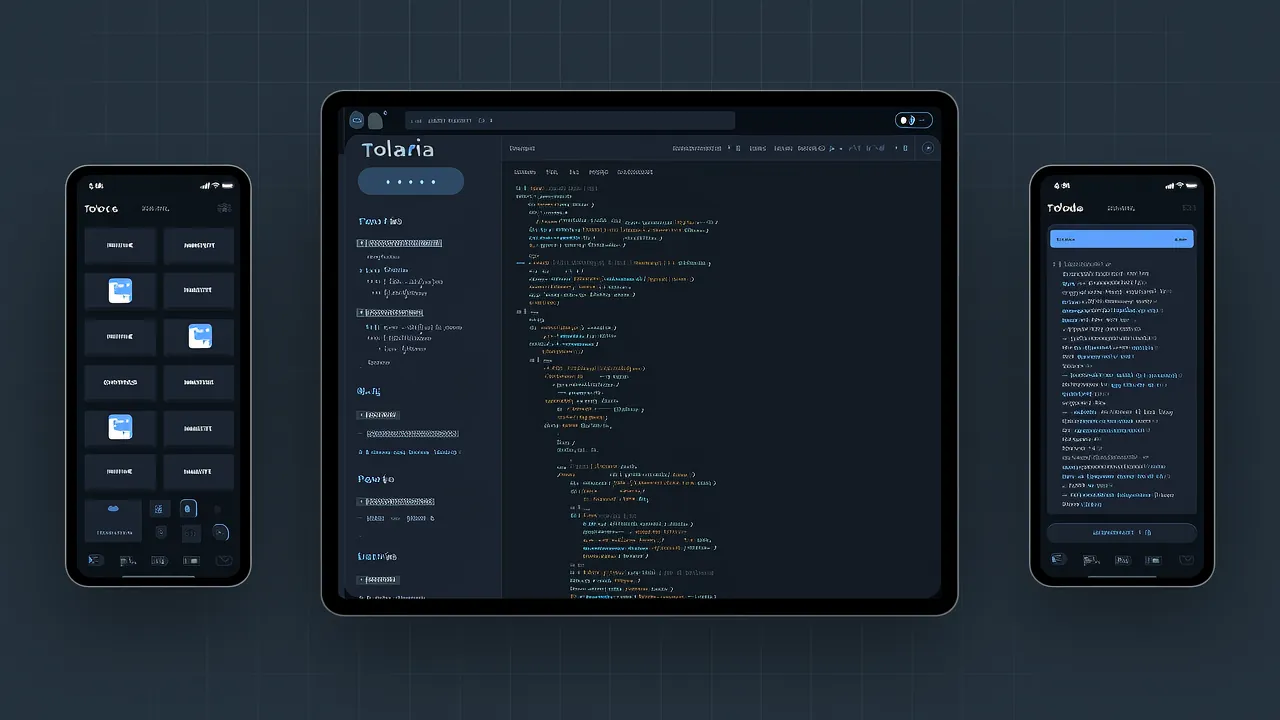
Was ist Tolaria?
Tolaria ist eine Open-Source-Desktop-Anwendung zur Verwaltung von Markdown-basierten Wissensdatenbanken. Entwickelt wurde sie von Luca Ronin. Ursprünglich entstand das Tool, um seinen persönlichen Arbeitsbereich mit über 10.000 Notizen zu verwalten. Heute ist es ein beliebtes Projekt auf GitHub mit über 14.000 Stars.
Kernphilosophie
Tolarias Designphilosophie ist klar: Deine Daten gehören dir, nicht einer Anwendung. Das unterscheidet sich grundlegend von gängigen Notiztools wie Obsidian oder Notion:
| Merkmal | Tolaria | Obsidian | Notion |
|---|---|---|---|
| Dateiformat | Reines Markdown + YAML-Frontmatter | Reines Markdown | Proprietäre Datenbank |
| Datenspeicherung | Lokaler Ordner (Git-Repository) | Lokaler Ordner | Cloud-Server |
| Offline-Nutzung | ✅ Vollständig offline | ✅ Vollständig offline | ❌ Netzwerk erforderlich |
| Git-Integration | 🎯 Eingebaute Git-Unterstützung | Über Plugins | Nicht unterstützt |
| AI-Freundlichkeit | ✅ Native Unterstützung für Claude Code/Codex/Gemini CLI | Über Plugins | Eingeschränkte API |
| Preis | 🆓 Komplett kostenlos und Open Source | Kostenlose Version + bezahlte Synchronisierung | Kostenlose Version + Abonnement |
| Plattformen | macOS / Windows / Linux | macOS / Windows / Linux / Mobile | Web / Mobile |
Warum Tolaria wählen?
-
Keine Vendor-Lock-in (Zero Lock-in): Alle Notizen sind standardmäßige
.md-Dateien. Du kannst sie jederzeit mit VS Code, Vim oder anderen Editoren öffnen. Selbst wenn du Tolaria nicht mehr nutzt, gehen keine Daten verloren. -
Git-First-Ansatz: Jede Wissensdatenbank (Vault) ist ein Git-Repository. Du erhältst automatisch Versionshistorie, Branch-Verwaltung und Remote-Synchronisierung. Das ist entscheidend für Teamarbeit oder langfristige Wissenssammlung.
-
Native AI-Unterstützung: Tolaria bietet eingebaute Unterstützung für Claude Code, Codex CLI und Gemini CLI. Es stellt zudem
AGENTS-Dateien bereit, damit AI-Assistenten deine Wissensdatenbank-Struktur verstehen können. -
Tastaturzentriertes Design: Für effizientes Arbeiten konzipiert. Viele Aktionen lassen sich über Tastenkürzel ausführen. Die Command Palette erinnert an die Erfahrung in VS Code.
-
Typen als Linsen (Types as Lenses): Tolarias Typsystem ist kein zwingendes Schema. Es hilft dir, Notizen zu navigieren und zu kategorisieren. Es gibt keine Pflichtfelder oder Validierungseinschränkungen.
Tolaria installieren
macOS (Homebrew empfohlen)
# Installation über Homebrew (am einfachsten)
brew install --cask tolaria

# Oder vom offiziellen Download
# Besuche https://refactoringhq.github.io/tolaria/download/
Windows
- Besuche die Tolaria Download-Seite
- Lade das neueste
.exe-Installationspaket herunter - Führe das Installationsprogramm aus
Hinweis: Das Windows-Installationspaket ist Authenticode-signiert. Auf firmenverwalteten Geräten kann dennoch eine Genehmigung der IT-Abteilung für die Erstinstallation erforderlich sein.
Linux
# AppImage herunterladen (empfohlen)
wget https://github.com/refactoringhq/tolaria/releases/latest/download/Tolaria-x86_64.AppImage
chmod +x Tolaria-x86_64.AppImage
./Tolaria-x86_64.AppImage

# Oder Flatpak verwenden (falls verfügbar)
flatpak install flathub com.refactoringhq.tolaria
Aus dem Quellcode bauen
# Repository klonen
git clone https://github.com/refactoringhq/tolaria.git
cd tolaria

# Abhängigkeiten installieren (Node.js 18+ erforderlich)
npm install

# Im Entwicklungsmodus starten
npm run dev

# Produktionsversion bauen
npm run build
Schnellstart: Erste Wissensdatenbank erstellen
Schritt 1: Vault initialisieren
Beim ersten Start von Tolaria kannst du wählen:
- Starter-Vault klonen: Tolaria bietet einen Getting-Started-Vault mit Beispielnotizen und Tutorials
- Leere Wissensdatenbank erstellen: Ganz von vorne beginnen
- Vorhandenen Ordner öffnen: Wenn du bereits einen Markdown-Notizordner hast, kannst du ihn direkt importieren
# Manuelles Erstellen eines leeren Vaults (über Kommandozeile)
mkdir ~/my-knowledge-base
cd ~/my-knowledge-base
git init
echo "# Meine Wissensdatenbank" > README.md
git add .
git commit -m "Initialer Commit"
Wähle dann in Tolaria „Existing Vault öffnen" und verweise auf diesen Ordner.
Schritt 2: Verzeichnisstruktur verstehen
Eine Tolaria-Wissensdatenbank ist einfach ein normaler Ordner. Eine typische Struktur sieht so aus:
my-vault/
├── .git/                  # Git-Repository (automatisch generiert)
├── AGENTS.md              # Konfigurationsdatei für AI-Assistenten
├── types/                 # Ordner für Typdefinitionen
│   ├── note.type.yaml     # Vorlage für Notiztyp
│   └── task.type.yaml     # Vorlage für Aufgabentyp
├── inbox/                 # Posteingang (schnelles Erfassen von Ideen)
├── projects/              # Projektnotizen
├── areas/                 # Verantwortungsbereiche
├── resources/             # Referenzmaterialien
└── archive/               # Archivierte Inhalte
Tipp: Diese Struktur orientiert sich an der PARA-Methode (Projects, Areas, Resources, Archive). Du kannst sie aber vollständig anpassen.
Schritt 3: Erste Notiz erstellen
Drücke in Tolaria Cmd/Ctrl + N, um eine neue Notiz zu erstellen:
---
title: Tolaria Lernnotizen
type: note
created: 2026-06-10
tags:
  - tolaria
  - knowledge-base
---

# Tolaria Kernfunktionen

Tolaria ist eine...

## Wichtige Features

- Datei-first
- Git-first
- Offline-first

## Verwandte Links

- [[Eine andere Notiz]]  <!-- Bidirektionale Verlinkung -->
- [Tolaria GitHub](https://github.com/refactoringhq/tolaria)
Schritt 4: Git-Remote-Repository konfigurieren (optional, aber empfohlen)
# Im Vault-Verzeichnis ausführen
cd ~/my-knowledge-base

# Remote-Repository hinzufügen (GitHub/GitLab/Gitee)
git remote add origin https://github.com/deinbenutzername/my-vault.git

# Pushen
git push -u origin main
So erhältst du ein Cloud-Backup deiner Notizen. Außerdem kannst du sie zwischen mehreren Geräten synchronisieren.
Kernfunktionen im Detail
1. Datei-First: Die Kraft von purem Markdown
Tolarias größter Vorteil: Es erstellt keine proprietären Formate. Jede deiner Notizen ist eine standardmäßige Markdown-Datei:
# In jedem Editor öffnen
code ~/my-vault/inbox/idea.md
vim ~/my-vault/projects/project-a.md

# Mit grep suchen
grep -r "Suchbegriff" ~/my-vault/

# Batch-Verarbeitung
find ~/my-vault -name "*.md" -exec sed -i 's/alter Begriff/neuer Begriff/g' {} \;
Das bedeutet: - ✅ Kann mit jedem Texteditor bearbeitet werden - ✅ Kann per Skript batch-verarbeitet werden - ✅ Kann in die Versionskontrolle aufgenommen werden - ✅ Kann mit anderen Tools integriert werden (z. B. statische Website-Generatoren)
2. Git-Integration: Natürlicher Vorteil der Versionshistorie
Nach jeder Änderung einer Notiz erkennt Tolaria die Änderungen automatisch und fordert zum Commit auf. Du kannst auch manuell arbeiten:
# Änderungen anzeigen
git status
git diff

# Änderungen committen
git add .
git commit -m "Projektnotizen aktualisiert"

# Historie anzeigen
git log --oneline

# Zu einer bestimmten Version zurückkehren
git checkout <commit-hash> -- dateiname.md
Praktisches Szenario: Du schreibst einen Artikel und löschst versehentlich einen wichtigen Abschnitt. Finde den früheren Commit über git log und stelle ihn mit git checkout wieder her.
3. Bidirektionale Verlinkung: Wissensnetzwerk aufbauen
Tolaria unterstützt Wiki-artige bidirektionale Verlinkung:
# In Notiz A
Siehe [[Notiz B]] für weitere Informationen.

# In Notiz B
Dies ist der Inhalt, auf den [[Notiz A]] verweist.
In der Tolaria-Oberfläche: - Klicke auf einen Link, um direkt dorthin zu springen - Rechtsklick, um „Backlinks" anzuzeigen (welche Notizen verweisen auf die aktuelle Notiz) - Die Graph-Ansicht zeigt das Beziehungsnetzwerk zwischen Notizen
4. Typsystem: Flexible Kategorisierung
Tolarias Typen (Types) sind kein zwingendes Schema, sondern Navigationshilfen:
# types/note.type.yaml
name: Note
icon: 📝
color: blue
fields:
  - name: created
    type: date
  - name: tags
    type: list
---
title: Meine Notiz
type: note
created: 2026-06-10
tags:
  - learning
---
Du kannst Notizen in der Seitenleiste nach Typ filtern. Aber es gibt keine Pflichtfelder. Fehlende Felder führen zu keinen Fehlermeldungen.
5. Command Palette: Effiziente Tastaturbedienung
Drücke Cmd/Ctrl + P, um die Command Palette zu öffnen – ähnlich wie in VS Code:
Quick Open: Notiz schnell öffnenCreate Note: Neue Notiz erstellenSearch: VolltextsucheGit Commit: Änderungen committenToggle Theme: Theme wechseln
Häufig verwendete Tastenkürzel:
- Cmd/Ctrl + N: Neue Notiz
- Cmd/Ctrl + P: Command Palette
- Cmd/Ctrl + F: Suchen
- Cmd/Ctrl + Shift + F: Globale Suche
- Cmd/Ctrl + [: Zurück zur vorherigen Seite
AI-Integration: AI-Assistenten deine Wissensdatenbank verstehen lassen
Ein Highlight von Tolaria ist die native Unterstützung für AI-Programmierungsassistenten. Im Root-Verzeichnis jedes Vaults befindet sich eine AGENTS.md-Datei. Sie erklärt AI-Assistenten, wie sie deine Wissensdatenbank-Struktur verstehen sollen.
Claude Code konfigurieren
# Im Vault-Verzeichnis
cd ~/my-vault

# Claude Code initialisieren (falls noch nicht installiert)
claude

# Claude Code liest automatisch AGENTS.md, um deine Notizstruktur zu verstehen
Beispielinhalt von AGENTS.md:
# AGENTS.md - Tolaria Vault Guide

Dieser Vault verwendet die PARA-Methode zur Organisation:

- **Projects/**: Aktive Projekte mit Deadlines
- **Areas/**: Laufende Verantwortlichkeiten
- **Resources/**: Referenzmaterialien
- **Archive/**: Abgeschlossene oder inaktive Elemente

## Notizformat

Alle Notizen sind Markdown-Dateien mit YAML-Frontmatter:

```yaml
---
title: Notiztitel
type: note|task|resource
created: YYYY-MM-DD
tags: [tag1, tag2]
---
Häufige Aufgaben
- Um recente Notizen zu finden: Nach
created-Datum im Frontmatter suchen - Um verwandte Notizen zu finden: Nach
[[Wiki-Links]]suchen - Um ein Projekt zu aktualisieren: Verzeichnis
projects/prüfen
### Praxisbeispiel: Notizen mit AI organisieren

```bash
# Claude Code im Vault-Verzeichnis ausführen
claude

# Dann fragen:
# "Fasse alle unvollständigen Projekte im Verzeichnis projects/ zusammen"
# "Finde alle Notizen, die 'TODO' enthalten"
# "Füge meinen Python-Lernnotizen Tags hinzu"
Weitere unterstützte AI-Tools
- Codex CLI: OpenAIs Kommandozeilen-Tool
- Gemini CLI: Googles Gemini-Kommandozeilenschnittstelle
- Beliebige LLMs: Da Notizen reiner Text sind, kannst du jedes AI-Tool zur Verarbeitung nutzen
Fortgeschrittene Anwendungen
1. Inbox-Workflow: Ideen schnell erfassen
Tolaria empfiehlt den Workflow „Inbox → Organisieren":
- Erfassen: Bei jeder Idee schnell eine Notiz unter
inbox/erstellen. Nicht über Kategorisierung nachdenken. - Organisieren: Täglich oder wöchentlich die Inbox durchgehen. Notizen in passende Ordner verschieben.
# Beispiel: Schnell erfassen
# Cmd/Ctrl + N drücken, Titel eingeben, als inbox/quick-thought.md speichern

# Regelmäßig organisieren
mv inbox/quick-thought.md projects/project-alpha/
git add .
git commit -m "Inbox organisiert: Notiz ins Projekt verschoben"
2. Web-Clipping: Webseiten-Inhalte speichern
Tolaria bietet eine Browser-Erweiterung (oder ein Bookmarklet) zum Speichern von Webseiten:
// Bookmarklet-Code (als Browser-Lesezeichen speichern)
javascript:(function(){
  const title = document.title;
  const url = window.location.href;
  const content = document.getSelection().toString() || document.body.innerText;

  const markdown = `---
title: ${title}
type: resource
created: ${new Date().toISOString().split('T')[0]}
source: ${url}
---

# ${title}

${content}
`;

  // In die Zwischenablage kopieren, dann in Tolaria einfügen
  navigator.clipboard.writeText(markdown);
  alert('In die Zwischenablage kopiert. Bitte in Tolaria einfügen');
})();
3. Vorlagensystem: Standardisierte Notizformate
Erstelle Vorlagen im Verzeichnis templates/:
# templates/meeting-note.md
---
title: {{title}}
type: meeting
created: {{date}}
attendees: []
---

# {{title}}

**Datum:** {{date}}
**Teilnehmer:**

## Agenda

1.
2.

## Diskussionspunkte

## Aktionspunkte

- [ ]
Kopiere beim Erstellen neuer Notizen die Vorlage und ersetze die Variablen.
4. Integration mit statischen Website-Generatoren
Da Notizen reines Markdown sind, kannst du deine Wissensdatenbank mit einem SSG als Website veröffentlichen:
# MkDocs verwenden
pip install mkdocs
mkdocs new my-site
cp -r ~/my-vault/* my-site/docs/
mkdocs serve

# Oder Hugo verwenden
hugo new site my-blog
cp -r ~/my-vault/* my-blog/content/
hugo server
5. Synchronisierung über mehrere Geräte
Synchronisiere über Git zwischen mehreren Geräten:
# Gerät A (Push)
cd ~/my-vault
git add .
git commit -m "Notizen aktualisiert"
git push

# Gerät B (Pull)
cd ~/my-vault
git pull
Tipp: Bei Konflikten fordert Git dich zur manuellen Zusammenführung auf. Für Markdown-Dateien ist das Mergen meist einfach.
Häufig gestellte Fragen
F1: Was ist der Unterschied zwischen Tolaria und Obsidian?
A: Der Hauptunterschied liegt in der Designphilosophie: - Obsidian: Funktionsreich, großes Plugin-Ökosystem, aber der Kern ist Closed Source - Tolaria: Komplett Open Source, native Git-Integration, AI-freundlich, leichter
Wenn du Datenhoheit und Open-Source-Transparenz schätzt, ist Tolaria die bessere Wahl. Wenn du eine Mobile App und reichhaltige Community-Plugins brauchst, könnte Obsidian besser passen.
F2: Kann ich von Obsidian zu Tolaria migrieren?
A: Ja! Da beide reines Markdown verwenden, reicht folgendes:
# Obsidian-Vault nach Tolaria kopieren
cp -r ~/obsidian-vault ~/tolaria-vault
cd ~/tolaria-vault
git init
git add .
git commit -m "Von Obsidian migriert"
Öffne dann diesen Ordner in Tolaria. Die Syntax für bidirektionale Verlinkung ([[link]]) ist ebenfalls kompatibel.
F3: Unterstützt Tolaria mobile Geräte?
A: Aktuell gibt es Tolaria nur für Desktop (macOS/Windows/Linux). Der mobile Zugriff ist auf folgenden Wegen möglich: - Nach Git-Synchronisierung in einem Markdown-Editor auf dem Handy öffnen (z. B. iA Writer, 1Writer) - Den Vault als statische Website veröffentlichen und über den Browser zugreifen
F4: Wie handhabt man Bildanhänge?
A: Erstelle im Vault einen Ordner assets/ für Bilder:

# Bild ins assets-Verzeichnis kopieren
cp ~/Downloads/diagram.png ~/my-vault/assets/
git add assets/diagram.png
git commit -m "Diagramm hinzugefügt"
F5: Wie ist die Performance von Tolaria? Wie viele Notizen kann es verarbeiten?
A: Der Autor von Tolaria verwaltet damit über 10.000 Notizen. Die tägliche Nutzung läuft flüssig. Performance-Engpässe liegen meist bei:
- Git-Operationen (git status wird bei vielen Dateien langsamer)
- Volltextsuche (kann durch Indexierung optimiert werden)
Es empfiehlt sich, alte Notizen regelmäßig im Verzeichnis archive/ zu archivieren. So bleibt die Anzahl aktiver Notizen in einem vernünftigen Rahmen.
Fazit
Tolaria ist ein für Entwickler konzipiertes Wissensdatenbank-Tool. Seine Kernvorteile:
- Datenhoheit: Reine Markdown-Dateien, kein Vendor-Lock-in
- Versionskontrolle: Native Git-Integration, natürliche Historienverfolgung
- AI-freundlich: Native Unterstützung führender AI-Programmierungsassistenten
- Open Source und kostenlos: Vollständig transparent, keine versteckten Kosten
- Plattformübergreifend: macOS / Windows / Linux
Geeignet für: - ✅ Entwickler, technische Autoren - ✅ Wissensarbeiter, die Datenhoheit schätzen - ✅ Teams, die bereits Git nutzen - ✅ Nutzer, die AI zur Wissensverwaltung einsetzen möchten
Weniger geeignet für: - ❌ Nutzer, die eine Mobile App benötigen - ❌ Nutzer, die Rich-Media-Einbettungen (Videos, interaktive Diagramme) bevorzugen - ❌ Nicht-technische Nutzer, die sich nicht mit Git auseinandersetzen möchten
Ressourcen-Links: - Tolaria GitHub-Repository - Download-Seite - Starter-Vault-Vorlage - Autoren Luca auf X
Wenn dir dieser Artikel geholfen hat, teile ihn gerne mit weiteren Entwicklern!