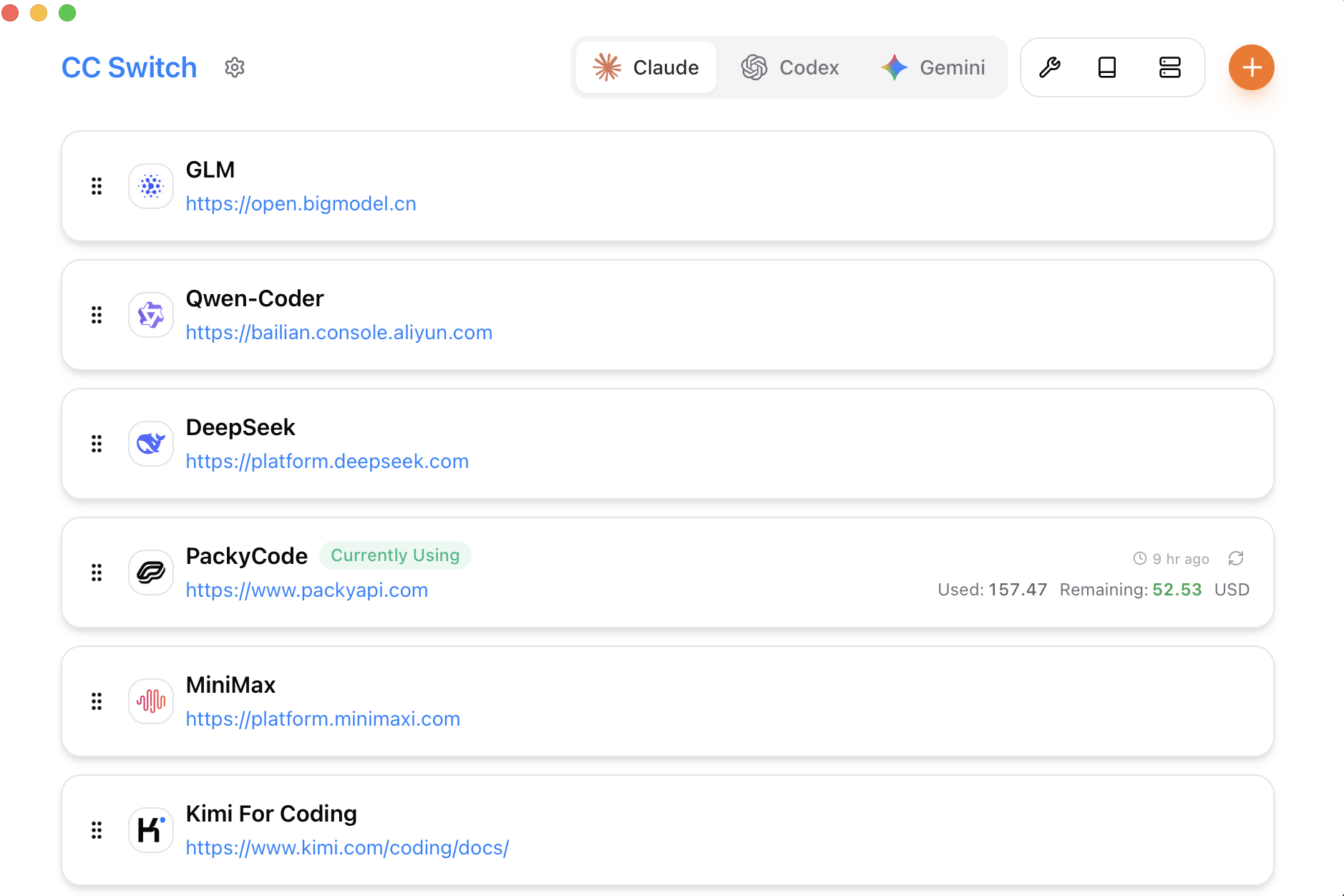
Wer gleichzeitig Claude Code, Codex, Gemini CLI und weitere AI-Programmierwerkzeuge nutzt, kennt den Nightmare: Konfigurationsdateien manuell verwalten. CC Switch löst das mit einer einheitlichen Desktop-Oberfläche — Provider per Knopfdruck wechseln, MCP zentral verwalten, Skills einheitlich installieren, dazu noch ein lokaler Proxy mit automatischem Failover.
1. Warum CC Switch?
Das AI-Programmier-Ökosystem 2026 ist so vielfältig wie nie:
- Claude Code — AI Agent im Terminal von Anthropic
- OpenAI Codex — OpenAIs Terminal-Programmierassistent
- Gemini CLI — Googles command-line AI-Coding-Tool
- OpenCode / OpenClaw — quelloffene Alternativen
Jedes Werkzeug bringt sein eigenes Konfigurationssystem mit: unterschiedliche Provider-Formate, verschiedene MCP-Konfigurationspfade, eigene Skills-Installationsroutinen. Wenn du einfach nur zwischen DeepSeek V4 und Claude Opus umschalten willst, musst du normalerweise:
- Die
.env-Datei öffnen undANTHROPIC_BASE_URLändern ANTHROPIC_AUTH_TOKENneu setzen- Claude Code neu starten
- Und falls was schiefging, JSON/TOML-Syntaxfehler debuggen
CC Switch bündelt all diese verstreuten Konfigurationen in einer plattformübergreifenden Desktop-App — mit grafischer Oberfläche und One-Click-Wechsel.
Welche Probleme löst CC Switch?
| Problem | Manuelle Verwaltung | CC Switch |
|---|---|---|
| Provider-Konfiguration | .env / JSON-Dateien bearbeiten | Ein-Klick-Wechsel in der Oberfläche |
| Modell-Wechsel | Umgebungsvariablen einzeln ändern | Schneller Wechsel über Tray-Menü |
| MCP-Server-Verwaltung | Jedes Tool separat konfigurieren | Einheitliches Panel, bidirektionale Synchronisation |
| Skills-Installation | Manuell clonen / Dateien kopieren | Ein-Klick-Installation, zentral verwaltet |
| Config-Backups | Dateien selbst suchen und sichern | Ein-Klick-Import / -Export |
| Proxy & Failover | Konfiguration manuell ändern | Lokaler Proxy mit automatischem Wechsel |
| Multi-Account-Verwaltung | Schnell unübersichtlich | Gruppenverwaltung, klar strukturiert |
2. CC Switch installieren
CC Switch ist ein quelloffenes Projekt und läuft auf macOS, Windows und Linux.
Download von GitHub
# Projektseite aufrufen
# https://github.com/farion1231/cc-switch

# macOS: .dmg-Datei herunterladen
# Windows: .exe-Installer herunterladen
# Linux: .AppImage oder .deb-Paket herunterladen
Erster Start nach der Installation
Beim Öffnen von CC Switch siehst du die folgenden Kernmodule:
- Providers — API-Provider-Konfiguration
- MCP — Model Context Protocol Server-Verwaltung
- Prompts — Prompt-Dateien (CLAUDE.md, AGENTS.md usw.)
- Skills — Agent-Skill-Verwaltung
- Sessions — Sitzungsverlauf
- Proxy — Lokale Proxy-Einstellungen
3. Provider konfigurieren: Multi-Modell mit einem Klick
Das ist die Kernfunktion von CC Switch. Es kommt mit 50+ vorkonfigurierten Providern, die alle wichtigen AI-Modell-Anbieter und Drittanbieter-Relay-Dienste abdecken.
3.1 DeepSeek V4 Provider hinzufügen
Am Beispiel von DeepSeek V4 (aus unserem vorherigen Artikel) — so geht's in CC Switch:
- Klicke auf das Providers-Panel links
- Klicke auf +, um einen neuen Provider hinzuzufügen
- Konfiguration ausfüllen:
Name: DeepSeek V4 Pro
Base URL: https://api.deepseek.com/anthropic
API Key: sk-your-deepseek-api-key
Modell: deepseek-v4-pro[1m]
- Speichern
Auf die gleiche Weise kannst du weitere Provider hinzufügen:
Name: Claude Opus (Offiziell)
Base URL: https://api.anthropic.com
API Key: sk-ant-your-key
Modell: claude-opus-2026

Name: DeepSeek V4 Flash
Base URL: https://api.deepseek.com/anthropic
API Key: sk-your-deepseek-api-key
Modell: deepseek-v4-flash
3.2 Provider mit einem Klick wechseln
Sobald die Provider eingerichtet sind, ist der Wechsel kinderleicht:
- Methode 1: Im CC Switch-Hauptfenster per Drag & Drop sortieren — der gewünschte Provider an erste Stelle ziehen
- Methode 2: Auf das System-Tray-Icon klicken und den Ziel-Provider aus dem Menü wählen
- Methode 3: Tastenkürzel für schnelles Umschalten (einstellbar in den Settings)
Nach dem Wechsel aktualisiert CC Switch automatisch die Konfigurationsdateien von Claude Code / Codex / Gemini CLI — kein manuelles Bearbeiten nötig.
3.3 Provider auf mehrere Tools synchronisieren
Wenn du sowohl Claude Code als auch OpenClaw nutzt, kann CC Switch denselben Provider in beide Tools synchronisieren:
- Ziel-Provider auswählen
- Auf Sync to Apps klicken
- Tools anhaken, die synchronisiert werden sollen (Claude Code, Codex, Gemini CLI, OpenClaw)
- Bestätigen
So werden alle Tools automatisch aktualisiert, wenn du einen neuen Relay-Service-API hinzufügst.
4. Lokaler Proxy & automatisches Failover
CC Switch schreibt nicht nur Konfigurationsdateien — es bietet auch einen lokalen Proxy-Modus, und das ist seine einzigartigste Funktion.
4.1 Was ist ein lokaler Proxy?
Mit aktiviertem lokalen Proxy werden alle Anfragen der AI-Programmierwerkzeuge zuerst an den CC Switch Proxy geschickt, der sie dann an den eigentlichen Modell-Service weiterleitet. Das bedeutet:
- Hot-Switch: Provider zur Laufzeit wechseln, ohne Tools neu zu starten
- Format-Konvertierung: Automatische Anpassung unterschiedlicher API-Formate
- Automatisches Failover: Bei Ausfall des primären Providers wird automatisch auf einen备用-Provider umgeschaltet
- Circuit Breaker: Bei erkannten Service-Problemen werden Anfragen automatisch pausiert
- Health Checks: Regelmäßige Verfügbarkeitsprüfung aller Provider
4.2 Lokalen Proxy konfigurieren
1. Proxy-Panel öffnen
2. Lokalen Proxy aktivieren (Standard-Port: 8080)
3. Provider-Prioritätswarteschlange einrichten:
   Priorität 1: DeepSeek V4 Pro (für den Alltag)
   Priorität 2: Claude Opus (für komplexe Aufgaben)
   Priorität 3: DeepSeek V4 Flash (für leichtere Aufgaben)
4. Automatisches Failover aktivieren
Nach der Konfiguration zeigt Claude Code einfach auf den lokalen Proxy:
# CC Switch lokalen Proxy verwenden
export ANTHROPIC_BASE_URL=http://localhost:8080
export ANTHROPIC_AUTH_TOKEN=placeholder-token

# Claude Code starten
claude
Alle Requests werden durch den Proxy geroutet — du musst dich nicht mehr darum kümmern, welcher Provider im Hintergrund läuft.
4.3 Praktische Anwendungsszenarien
Szenario 1: Kostenoptimierung
Im Alltag günstiges DeepSeek V4 nutzen, bei komplexen Architekturfragen automatisch auf Claude Opus wechseln:
# CC Switch Routing-Regeln (Beispiel)
rules:
  - condition: "token_cost < 50000"
    provider: "deepseek-v4-flash"
  - condition: "token_cost >= 50000"
    provider: "deepseek-v4-pro"
  - condition: "requires_complex_reasoning"
    provider: "claude-opus"
Szenario 2: Service-Ausfall
Die DeepSeek API hat in Stoßzeiten manchmal Verzögerungen. CC Switch erkennt das automatisch und wechselt auf einen备用-Provider — dein Arbeitsfluss wird nicht unterbrochen.
5. MCP zentral verwalten
Model Context Protocol (MCP) ist das Standardprotokoll, mit dem AI Agents externe Tools anbinden. Verschiedene AI-Programmierwerkzeuge nutzen unterschiedliche MCP-Konfigurationspfade:
- Claude Code:
~/.claude/mcp.json - Codex:
~/.codex/mcp.json - Gemini CLI: eigene Pfade
CC Switch bietet ein einheitliches MCP-Panel:
5.1 MCP Server hinzufügen
{
  "mcpServers": {
    "filesystem": {
      "command": "npx",
      "args": ["-y", "@modelcontextprotocol/server-filesystem", "/path/to/project"],
      "disabled": false
    },
    "github": {
      "command": "npx",
      "args": ["-y", "@modelcontextprotocol/server-github"],
      "env": {
        "GITHUB_PERSONAL_ACCESS_TOKEN": "ghp-your-token"
      }
    },
    "sequential-thinking": {
      "command": "npx",
      "args": ["-y", "@modelcontextprotocol/server-sequential-thinking"]
    }
  }
}
Diese Konfiguration wird direkt im CC Switch MCP-Panel bearbeitet — Tools zum Synchronisieren auswählen und mit einem Klick verteilen.
5.2 Bidirektionale Synchronisation
Nach Änderungen an der MCP-Konfiguration in CC Switch kannst du wählen:
- Push zu den Tools: MCP-Konfigurationsdateien der einzelnen Tools aktualisieren
- Von den Tools pullen: Bestehende MCP-Konfigurationen auslesen und zusammenführen
Besonders nützlich für alle, die MCP bereits in mehreren Tools konfiguriert haben.
6. Skills mit einem Klick installieren
Das Skills-System von Claude Code ermöglicht spezialisierte Aufgaben (Code Review, Datenbank-Migrationen, Docker-Operationen usw.). Aber Skills sind über die Verzeichnisse verschiedener Tools verstreut.
6.1 Skills von GitHub installieren
CC Switch unterstützt die One-Click-Installation von Skills direkt aus GitHub-Repositories:
1. Skills-Panel öffnen
2. Auf Install from GitHub klicken
3. Repository-Adresse eingeben, z. B.:
   https://github.com/anthropics/skills
   https://github.com/community/awesome-claude-skills
4. Installationsart wählen:
   - Symbolic Link (Symlink, Updates im Quell-Repo werden automatisch übernommen)
   - Copy (eigenständige Kopie)
5. Ziel-Tool auswählen
6.2 Beliebte Skills — Empfehlungen
Die am häufigsten genutzten Skills für Entwickler:
| Skill | Funktion | Einsatzgebiet |
|---|---|---|
| GitHub PR Review | Pull Requests automatisch reviewen | Code Review |
| Database Migration | Datenbank-Migrationen generieren und ausführen | Backend-Entwicklung |
| Docker Compose | Docker-Container verwalten | DevOps |
| Git Best Practices | Intelligente Git-Workflow-Empfehlungen | Versionskontrolle |
| API Testing | Automatisierte API-Tests | API-Entwicklung |
6.3 Skills sichern und wiederherstellen
1. Skills-Panel öffnen
2. Auf Export klicken (alle installierten Skills als Liste exportieren)
3. Als JSON-Datei speichern
4. Bei neuem Rechner oder Neuinstallation: Import klicken und wiederherstellen
7. Prompts zentral verwalten
AI-Programmierwerkzeuge haben jeweils ihre eigene Projektanleitungs-Datei:
CLAUDE.md— Projektregeln für Claude CodeAGENTS.md— Agent-Anweisungen für OpenClawGEMINI.md— Prompt-Datei für Gemini CLI
Das Prompts-Panel von CC Switch unterstützt:
- Markdown-Editor: Prompt-Dateien direkt bearbeiten
- Cross-Tool-Synchronisation: Einmal bearbeiten, in allen Tools synchronisieren
- Versionsverwaltung: Änderungsverlauf einsehen, jederzeit zurückrollen
Praxisbeispiel: Einheitliche CLAUDE.md für das Team erstellen
# CLAUDE.md

## Coding-Standards
- Python 3.12+, mit Type Annotations
- Alle Funktionen müssen Docstrings haben
- Tests mit pytest, Coverage > 80%
- PEP 8 einhalten, Formatierung mit ruff

## Architektur-Vorgaben
- Controller-Schicht greift nicht direkt auf die DB zu — immer über Service-Schicht
- Datenbank-Migrationen mit Alembic
- Alle API-Endpunkte müssen Rate-Limiting haben

## Sicherheitsanforderungen
- Keine sensiblen Daten in Logs (Keys, Tokens, Passwörter)
- Benutzereingaben müssen validiert und gesäubert werden
- SQL-Queries müssen parametrisiert sein
Nach der Bearbeitung in CC Switch klickst du auf Sync to All Apps — diese Regeln werden automatisch in die Projektverzeichnisse von Claude Code, OpenClaw und allen anderen Tools synchronisiert.
8. Vergleich mit anderen Lösungen
| Feature | CC Switch | Manuelle Konfiguration | Claude Code (nativ) |
|---|---|---|---|
| Provider-Verwaltung | ✅ Grafische Oberfläche, Ein-Klick-Wechsel | ❌ Config-Dateien bearbeiten | ⚠️ Umgebungsvariablen |
| Multi-Tool-Synchronisation | ✅ Einheitliche Verteilung | ❌ Tool für Tool konfigurieren | ❌ Nicht unterstützt |
| Lokaler Proxy | ✅ Automatisches Failover | ❌ Selbst aufbauen | ❌ Nicht unterstützt |
| MCP-Verwaltung | ✅ Zentrales Panel | ❌ Überall verstreut | ⚠️ Nur eigenes Tool |
| Skills-Installation | ✅ Ein-Klick-Installation | ❌ Manuelles Clonen | ⚠️ Nur über CLI |
| Plattformübergreifend | ✅ Mac/Win/Linux | ✅ | ⚠️ Nur Terminal |
| Open Source | ✅ MIT | - | ❌ Closed Source |
9. Fortgeschrittene Tipps
9.1 Team-Konfiguration teilen
CC Switch unterstützt Export und Import von Konfigurationen — ideal für Teamarbeit:
# Konfiguration exportieren
# CC Switch: Settings → Export Configuration
# Erzeugt cc-switch-config.json

# Team-Mitglieder importieren:
# Settings → Import Configuration → Datei auswählen
9.2 Tastenkürzel anpassen
In den CC Switch-Einstellungen lassen sich eigene Shortcuts definieren:
Ctrl+Shift+1 → Provider 1 wählen (DeepSeek V4 Pro)
Ctrl+Shift+2 → Provider 2 wählen (Claude Opus)
Ctrl+Shift+3 → Provider 3 wählen (DeepSeek V4 Flash)
9.3 Claude Code Workflow mit CC Switch
Empfohlene Umgebungsvariablen:
# ~/.zshrc
# CC Switch lokalen Proxy nutzen
export ANTHROPIC_BASE_URL=http://localhost:8080
export ANTHROPIC_AUTH_TOKEN=cc-switch-proxy
export ANTHROPIC_MODEL=auto

# Für Direktverbindung (ohne Proxy)
# export ANTHROPIC_BASE_URL=https://api.deepseek.com/anthropic
# export ANTHROPIC_AUTH_TOKEN=sk-your-key
# export ANTHROPIC_MODEL=deepseek-v4-pro[1m]
10. Fazit
CC Switch löst eines der praktischsten Probleme im AI-Programmier-Ökosystem — Konfigurationsmanagement.
Für einzelne Entwickler: - ✅ 50+ Provider-Presets, sofort einsatzbereit - ✅ Multi-Modell-Wechsel per Knopfdruck, kein manuelles Config-Editing - ✅ Lokaler Proxy mit automatischem Failover, unterbrechungsfreier Workflow - ✅ MCP/Skills zentral verwaltet, weniger Wartungsaufwand
Für Teams: - ✅ Config-Export/-Import, Team-Standards schnell einheitlich machen - ✅ Multi-Account-Verwaltung, klare Trennung verschiedener Projekte und Umgebungen - ✅ Prompt-Synchronisation, alle Agents folgen denselben Regeln
Wenn du bereits Claude Code mit DeepSeek V4 nutzt (siehe unser vorheriger Terminal AI Programming Guide), macht CC Switch die Verwaltung mehrerer Modelle und Provider deutlich einfacher.
Weiterführende Links: